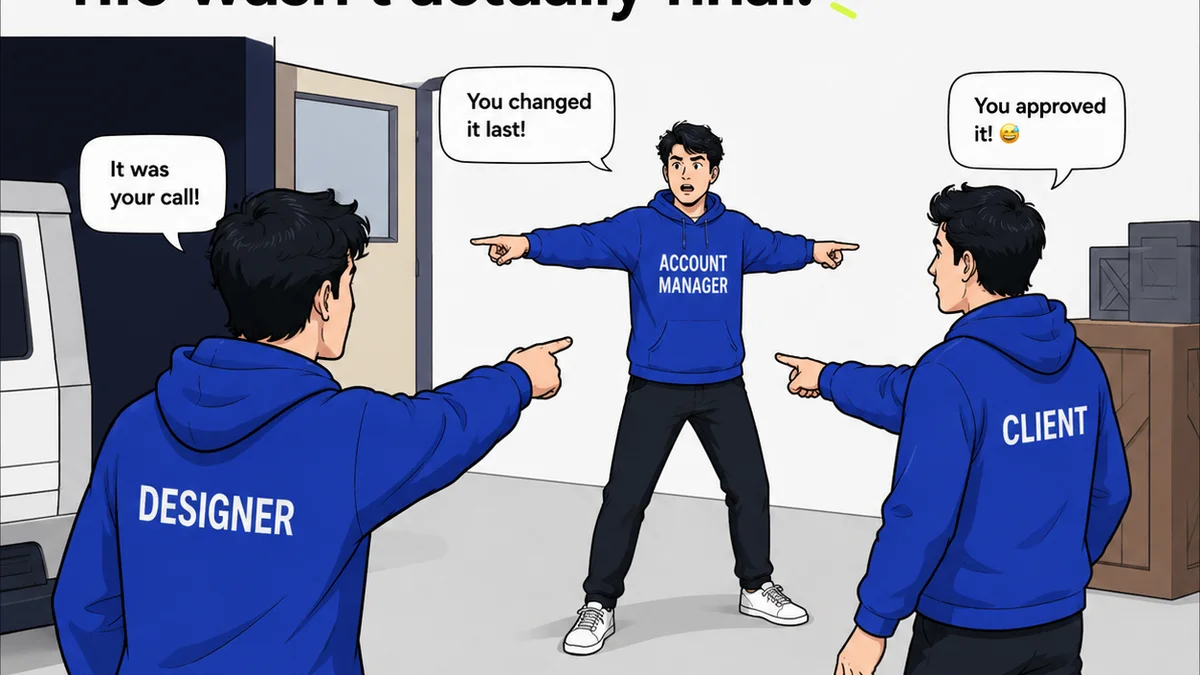
Everyone thinks they know how to get client approvals for designs made in Canva. You send a link, they click around, maybe leave a comment. Simple, right?
None of that is wrong. But it’s incomplete.
The hard truth is that a haphazard Canva approval process breeds confusion, delays, and ultimately, lower-quality creative. It’s not just about *getting* feedback; it’s about *managing* it effectively.
1. The Misconception: Canva is Just for Simple Designs
Many creatives and clients fall into the trap of thinking Canva is only for quick social posts or basic flyers. This limits how they approach its use in a professional workflow.
This perception leads to treating Canva designs as disposable or less critical than those created in Adobe Creative Suite. It fosters a casual approach to feedback and approvals that doesn't scale.
The Reality: Professional Use Demands Professional Process
Canva has evolved. It’s now a powerful tool for a wide range of professional design needs, from brand kits to pitch decks, even small campaigns.
When used professionally, the approval process needs to match that level of seriousness. You can't just 'wing it' when the stakes are higher.
- Brand consistency across multiple assets.
- Complex presentations with specific data visualization.
- Marketing collateral for a product launch.
- Internal company-wide templates.
Treating these with a casual
Frequently asked questions
What is the most critical step in a Canva approval workflow?
Clearly defining the scope and desired outcomes *before* any design work begins. This sets expectations and prevents scope creep during the feedback phase.
How can I ensure clients provide actionable feedback in Canva?
Use a structured feedback system. Provide clear guidelines on what constitutes actionable feedback (e.g., specific text changes, color palette adjustments) versus subjective opinions.
Can Canva handle complex revision tracking?
While Canva has commenting features, it lacks robust version control and detailed revision history found in dedicated project management tools. Integrating a system like Revue helps manage this.
What's the difference between approval and feedback in Canva?
Feedback is input for potential changes. Approval is the formal sign-off that the design meets requirements and is ready for the next stage. A checklist ensures both are managed distinctly.