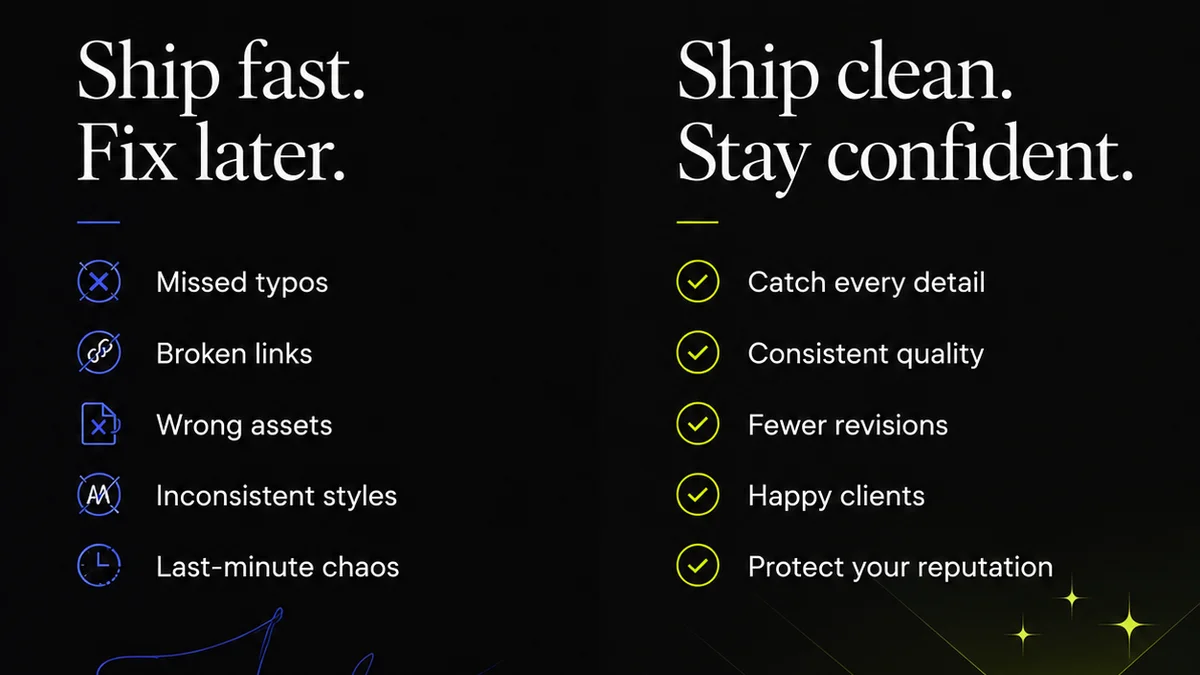
Everyone thinks managing Canva files is easy. Drag, drop, done. It’s a tool for everyone, right? That’s the party line. And for simple social posts or quick flyers, it often is.
But when you’re running an agency or a busy in-house team, that simplicity breaks down. Fast.
The hard truth? Canva’s inherent flexibility and collaborative features create a version control nightmare if you don’t actively manage it. Relying solely on Canva’s built-in history is a recipe for chaos, missed feedback, and wasted time. You need a system.
1. The Illusion of 'Latest Version'
Canva’s 'version history' sounds like a lifesaver. It tracks changes automatically. Easy, right?
Not quite.
This history is linear and tied to individual edits within a single file. It doesn’t account for:
- Branching creative directions
- Client-requested ‘what ifs’ that get abandoned
- Accidental overwrites by different team members
- Separate files created for minor tweaks that should have been revisions
- Integrating designs from multiple contributors
What looks like a clean timeline is often a tangled mess. Finding the *actual* approved final version, or a specific iteration a client loved weeks ago, becomes a painful archaeological dig.
The Real Problem: Lack of Explicit Milestones
Canva’s history is passive. It records *what* happened, but doesn’t help you define *what matters*. There’s no built-in way to explicitly mark a version as 'Client Approved - Round 2' or 'Internal Review Draft'.
This forces manual workarounds that are easily forgotten.
2. The Cascade of Duplicates
The most common workaround? 'Make a copy'.
This is where the real trouble starts. A project begins. A copy is made for a client review. Another copy for a different campaign. Another copy because someone wasn't sure if they were editing the right one.
Suddenly, your project folder looks like this:
- Project XYZ - FINAL
- Project XYZ - FINAL v2
- Project XYZ - FINAL - REALLY FINAL
- Project XYZ - CLIENT FEEDBACK
- Project XYZ - CLIENT FEEDBACK (1)
- Project XYZ - CLIENT FEEDBACK (Revised)
- Project XYZ - FOR SOCIAL
- Project XYZ - FOR PRINT
Sound familiar?
Each duplicate is a potential pitfall. Which one has the latest copy deck? Which one includes that crucial logo adjustment?
This is not version control. This is digital hoarding.
The Cost of Confusion
Every minute spent searching for the correct file is a minute not spent designing, strategizing, or client servicing. It erodes efficiency and adds unnecessary stress.
It also increases the risk of delivering the wrong asset. That’s a client relationship killer.
3. Feedback Chaos: The Unseen Enemy
Canva allows comments directly on designs. Great for quick thoughts.
But when multiple people comment across multiple versions of the same file, it becomes impossible to track.
Imagine:
- Client A comments on 'Project XYZ - FINAL'.
- Client B comments on 'Project XYZ - FINAL v2'.
- Your designer updates 'Project XYZ - FINAL - REALLY FINAL' based on a Slack message, not the Canva comments.
- Someone else adds feedback to the original 'Project XYZ - CLIENT FEEDBACK' file, unaware it's already superseded.
The comments become isolated, disconnected whispers. The feedback loop snaps.
The Assumption vs. Reality
The assumption is that in-app commenting simplifies feedback. The reality is that without a central, structured system, comments get lost, ignored, or misapplied.
This is especially true when feedback comes from various sources: email, Slack, phone calls, and then finally, maybe, in Canva.
4. Integrating Canva into a Professional Workflow
Canva is a powerful tool, but it’s rarely the *only* tool. Agencies and in-house teams use it alongside Adobe Creative Suite, Figma, project management software, and communication platforms.
The challenge is making Canva play nice with the rest of your stack.
The Manual Integration Trap
Exporting every iteration from Canva and uploading it elsewhere for review or storage is tedious and error-prone. It breaks the flow and creates more file management headaches.
This is where many teams get stuck. They use Canva for its ease but struggle to incorporate its output into a robust, auditable workflow.
Thinking Beyond the Canvas
True version control isn’t just about saving files. It’s about managing the *state* of a project. It’s about knowing:
- What is the current, active design?
- Who approved what, and when?
- What were the key decision points?
- Where is the definitive source of truth for this asset?
Canva, on its own, doesn’t provide these answers reliably for complex projects.
Where Revue Fits In
This is precisely why tools like Revue exist. While Canva excels at creation, managing the lifecycle of creative work requires more structure.
Revue helps centralize client feedback, no matter where it originates. Instead of scattered comments across multiple Canva files, all feedback can be logged against specific versions or milestones.
This provides a clear audit trail. You can see exactly which version was presented, what feedback was given, and what revisions were made in response.
Revision and approval tracking becomes straightforward. No more guessing which 'FINAL' is truly final. You can manage the entire review cycle within a single platform, linking back to the specific Canva designs (or other assets) at each stage.
This structured approach ensures quality checks are based on confirmed requirements, not assumptions derived from a chaotic file system.
5. Establishing Your Canva Protocol
Since Canva doesn’t enforce a perfect system, you must. Here’s how:
Define Naming Conventions (and Stick to Them)
Agree on a clear, consistent naming structure. Something like:
- `[Client Name]_[Project Name]_[Version Number]_[Status].canva`
- `AcmeCorp_Q3Campaign_v03_ClientReview.canva`
Make this convention visible and enforce it. Use templates to help.
Designate a 'Master' Folder
Have one primary location for the *current* working file. All collaboration happens here or via explicit, tracked copies.
Leverage Canva's Sharing Features Wisely
Use specific share links for review, rather than just giving edit access to everyone. Understand the difference between view-only, comment, and edit permissions.
Schedule Regular 'Cleanup' Sessions
Dedicate time weekly or bi-weekly to:
- Archive old, unused duplicate files.
- Consolidate feedback.
- Ensure the 'master' file is indeed the latest approved iteration.
- Mark key milestones within Canva's history if possible, or better yet, externally.
Train Your Team
Don’t assume everyone understands the importance of version control. Train your team on the protocol. Make it part of onboarding.
Final Thought
Canva is an democratizing force in design. But its ease of use can mask deep operational challenges for professional teams. Moving beyond simple file management to true version control requires intention, process, and the right tools.
Are you managing your Canva files, or are they managing you?
Frequently asked questions
How can I prevent accidental overwrites in Canva?
Use Canva's 'Share' options to grant specific permissions (view, comment, edit) rather than giving broad edit access. Establish a clear 'master' file protocol and train your team to always work from or explicitly copy this designated file. Regularly review file access and permissions.
What's the best way to track client feedback on Canva designs?
While Canva has commenting, it's best to centralize feedback externally. Use a tool like Revue to log all client feedback against specific design versions. This creates an auditable trail, ensuring no comments get lost across multiple file iterations or communication channels.
How do I manage multiple versions of a Canva design without creating chaos?
Implement a strict naming convention (e.g., Project_v03_Status.canva). Designate a single 'master' file for active work. Regularly archive or delete obsolete duplicates. For critical stages, consider using Revue to formally mark and track approved versions, rather than relying solely on file names or Canva's linear history.
Can Canva's version history replace a formal version control system?
No. Canva's version history tracks edits within a single file's timeline. It doesn't manage branching directions, client approval milestones, or separate iterations effectively. For professional workflows, you need an external system to provide explicit control, tracking, and auditability beyond Canva's automatic logging.