Everyone thinks the Canva vs. Adobe debate is simple: Canva is for beginners, Adobe is for pros. Or maybe it’s about cost. Or which tool looks cooler. None of that is wrong. But it’s incomplete.
The real difference isn’t the software itself. It’s how each platform fundamentally changes your team’s creative workflow, client feedback cycles, and ultimately, your ability to deliver quality work at speed. For US creative and marketing teams, this distinction is critical.
1. The Core Design Philosophy and Output
At its heart, Canva is a templated, streamlined experience designed for rapid content creation and broad accessibility. Adobe, on the other hand, is a suite of professional-grade tools built for deep, granular control over every pixel and vector point.
Canva: Accessibility and Speed
Canva thrives on its vast library of templates, drag-and-drop interface, and simplified tools. It’s built to get a decent-looking asset out the door quickly, often for social media, basic marketing collateral, or internal presentations.
- Onboarding: Near-instant. Anyone can pick it up.
- Collaboration: Real-time editing, easy sharing.
- Output: Optimized for web and common print formats, but lacks advanced print controls.
- Use Case: High-volume, low-complexity assets; consistent branding across many simple pieces.
The assumption is that this is only for non-designers. But many agencies use it for quick social mockups or internal comms where brand consistency is key but deep design isn’t required.
Adobe: Power and Precision
Adobe Creative Cloud (Photoshop, Illustrator, InDesign, etc.) offers unparalleled depth. These are industry-standard tools for a reason. They provide the raw power needed for complex illustration, photo manipulation, intricate layouts, and high-fidelity video editing.
- Onboarding: Steep learning curve. Requires dedicated training.
- Collaboration: Evolving, but historically more siloed or reliant on cloud storage/sharing.
- Output: Professional-grade, industry-standard files for print, web, and specialized outputs (e.g., prepress, motion graphics).
- Use Case: Complex branding, detailed illustrations, high-end photography, sophisticated layouts, video production.
The assumption is that only senior designers need Adobe. But even junior designers need to understand its core principles for file management, output settings, and professional asset creation.
2. Client Feedback and Revision Cycles
This is where the workflow friction often lies. How does each tool handle input from clients and the subsequent iterations?
Canva's Collaborative Simplicity
Canva’s sharing model is built for easy collaboration. You can share a link, invite collaborators, and even allow clients to make edits directly (if you permit). Comments can be added directly to the design canvas.
- Pros: Fast, intuitive for clients, reduces back-and-forth on simple changes.
- Cons: Feedback can become a chaotic stream without clear version control. Edits made by clients can be accidental or detrimental to the design integrity.
The hard truth? While easy for clients, this can lead to muddy feedback. A client might change a color on a whim, unaware of brand guidelines or design intent. Managing these changes requires a disciplined process, not just the tool.
Adobe's Structured (and Sometimes Strained) Feedback Loop
Traditionally, Adobe workflows relied on exporting files (PDFs, JPGs) and receiving feedback via email or separate platforms. This often led to version control nightmares and misinterpretations.
- Pros: Clearer separation of feedback and creation; easier to track specific revisions if managed well.
- Cons: Slower, prone to version control issues, requires clients to have viewers or understand file types.
Adobe’s cloud-based services and integrations are improving this. Tools like Adobe Acrobat for PDF markups, Creative Cloud Libraries for asset sharing, and Frame.io for video review aim to bridge the gap. But it’s still often a more manual or tool-dependent process than Canva’s integrated approach.
3. Asset Management and Brand Consistency
Keeping brand assets organized and ensuring consistency across all outputs is a constant challenge. How do Canva and Adobe stack up?
Canva: Brand Kits and Templates
Canva’s Brand Kit feature is a significant advantage for maintaining consistency. You can upload logos, define brand colors, and select brand fonts. These are then easily accessible within the editor.
- Pros: Centralized brand assets, templates ensure consistent application of branding.
- Cons: Limited to what Canva can handle; doesn't manage complex asset libraries (e.g., diverse photo libraries, video clips) as robustly as dedicated DAMs.
The assumption that Canva automatically enforces brand consistency is false. It provides the tools, but the team still needs to use them correctly. A poorly set-up Brand Kit is useless.
Adobe: Ecosystem and Libraries
Adobe Creative Cloud offers Creative Cloud Libraries, which allow teams to share assets (colors, character styles, graphics, logos) across different Adobe applications. This is powerful for ensuring consistency within professional design projects.
- Pros: Integrates seamlessly across the Adobe suite, powerful for complex brand systems.
- Cons: Primarily for designers already within the Adobe ecosystem; less accessible for non-designers or clients. Managing a large DAM (Digital Asset Management) system often requires separate solutions.
For US creative agencies dealing with large clients and extensive brand guidelines, Adobe’s ecosystem, combined with a robust DAM, is often the only viable path for true brand governance.
4. Integration and Workflow Automation
No tool exists in a vacuum. How well do Canva and Adobe play with others in your tech stack?
Canva: Broad, Simple Integrations
Canva integrates with a wide range of platforms, particularly for social media publishing (e.g., direct posting to Facebook, Instagram, LinkedIn). Its API allows for embedding Canva directly into other applications, making it accessible within different workflows.
- Pros: Easy to connect to marketing tools, simplifies publishing workflows.
- Cons: Integrations are often focused on output and publishing, less on deep workflow management or complex data syncing.
Adobe: Deep, Professional Integrations
Adobe’s strength lies in its deep integration within the professional creative ecosystem. Tools like Adobe Premiere Pro integrate with After Effects, Photoshop and Illustrator files can be seamlessly linked into InDesign, and Adobe's enterprise solutions offer robust DAM and workflow management.
- Pros: Seamless handoffs between professional tools, powerful for complex production pipelines.
- Cons: Integrations are often proprietary and focused on other Adobe products or high-end third-party tools. Less plug-and-play for typical marketing automation platforms compared to Canva.
The assumption that integration means just connecting to social media is shortsighted. For agencies, integration means how smoothly a design asset flows from concept to final delivery, passing through client review and internal QA without breaking.
5. When to Choose Which (or Both)
The decision isn’t always binary. Many teams find value in using both platforms strategically.
Choose Canva When:
- You need to empower non-designers to create on-brand assets quickly.
- Your primary output is social media graphics, simple web banners, or basic presentations.
- Rapid iteration and client-side editing on simple designs are priorities.
- Onboarding time for new team members or freelancers is a major constraint.
Choose Adobe When:
- You require pixel-perfect control, complex illustrations, or advanced photo manipulation.
- You are producing print collateral with demanding specifications (e.g., CMYK, spot colors, bleeds).
- Sophisticated typography and layout are critical.
- You need industry-standard files for professional printing, video production, or other specialized outputs.
- Your workflow involves complex, multi-stage production pipelines.
Use Both Strategically:
A common and effective strategy is to use Canva for initial concepts, social media assets, or internal collateral, and then leverage Adobe tools for final polish, high-fidelity outputs, or complex campaign elements. This requires clear guidelines on when to transition assets and how to maintain fidelity.
Where Revue Fits In
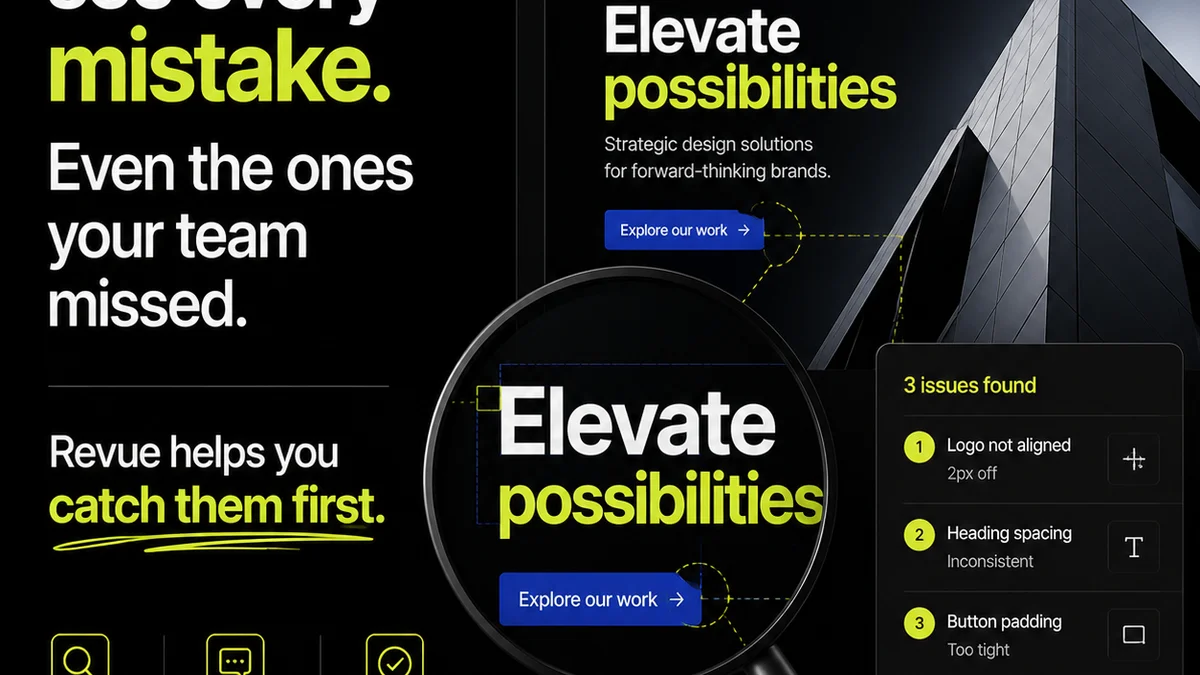
Regardless of the primary design tool, managing client feedback and revisions is a universal pain point. This is where tools like Revue become essential.
Canva's collaborative features can sometimes lead to a deluge of unstructured feedback. Adobe workflows, while more structured, can be slow and prone to versioning chaos. Revue centralizes this entire process.
- Consolidated Feedback: All client comments, markups, and approvals live in one place, linked to specific versions of the creative asset.
- Clear Revision History: Track every iteration, who approved what, and when. No more digging through email chains.
- Quality Control Checkpoints: Implement structured QA steps before final delivery, ensuring all feedback has been addressed and standards are met.
By integrating Revue into your workflow, you bring order to the feedback chaos, regardless of whether your team is designing in Canva, Adobe, or a mix of both. It’s about streamlining the approval process, not just the creation.
Final Thought
The Canva vs. Adobe discussion often gets bogged down in feature comparisons. But the more impactful question for US creative and marketing teams is: Which toolset, and which accompanying workflow, best supports your team’s speed, quality, and sanity? The answer might not be as simple as you think, and it likely involves more than one tool.
Frequently asked questions
Can Canva replace Adobe Creative Cloud for professional design work?
For many tasks, yes. Canva excels at rapid content creation, social media graphics, and simple marketing collateral. However, for complex illustration, high-end photo editing, sophisticated layouts, and professional print production, Adobe Creative Cloud offers unparalleled depth and control.
How does client feedback differ between Canva and Adobe workflows?
Canva's integrated commenting and direct editing can be faster for clients but may lead to less structured feedback. Adobe workflows traditionally relied on exporting files for feedback, which can be slower but more controlled if managed properly. Tools like Frame.io and Acrobat are improving Adobe's feedback loop.
Is it better for a US creative agency to use only Canva or only Adobe?
Many agencies find value in using both. Canva can empower non-designers and speed up simple asset creation, while Adobe handles complex, high-fidelity projects. The key is defining clear workflows for when and how to use each tool.
How can a team manage brand consistency when using both Canva and Adobe?
Both platforms offer features like Brand Kits (Canva) and Creative Cloud Libraries (Adobe) to centralize brand assets. However, establishing clear brand guidelines and implementing a robust Digital Asset Management (DAM) system, potentially integrated with a tool like Revue for approvals, is crucial for maintaining consistency across both platforms.