Everyone thinks Figma is inherently productive. Just open it up, start designing, and boom—creativity flows. None of that is wrong. But it’s incomplete.
The real truth? Figma’s power isn’t just in its features; it’s in how you *use* those features, and the systems you build around them. For US-based teams juggling client demands, remote collaboration, and tight deadlines, maximizing Figma productivity is a strategic imperative.
1. Mastering the Art of Organization
A cluttered file is a death sentence for productivity. It’s not just about aesthetics; it’s about speed and sanity.
File Naming Conventions
This sounds basic, but it’s foundational. Establish a clear, consistent file naming convention. Think: ClientName_ProjectName_Version_Date.fig. This saves countless hours of searching and reduces the risk of working on outdated versions.
Page and Frame Structure
Within your Figma files, use pages to segment major sections or phases (e.g., 'Wireframes', 'UI Design', 'Components', 'Prototypes'). Inside pages, name frames logically. Group related elements. Use auto-layout religiously. This isn’t just for responsive design; it’s for predictable spacing and easier manipulation.
Component Management
A well-organized component library is gold. Use descriptions, tags, and clear naming for your components. Keep your main component file separate and use libraries to share across projects. This prevents inconsistencies and speeds up UI development.
2. Streamlining Feedback and Collaboration
Figma’s real-time collaboration is a game-changer, but uncontrolled feedback can become chaos.
Defined Feedback Loops
Don’t let feedback live solely in comments. Set clear expectations for how and when feedback is given and actioned. Use comment threads for specific points, but ensure key decisions are captured elsewhere or directly implemented.
Version Control and Handoff
Leverage Figma’s version history. Name key versions (e.g., 'Client Approved v1.2', 'Final Dev Handoff'). For handoff, ensure developers have access and understand how to use the inspect panel. Plugins can further refine this process.
Smart Use of Prototypes
Interactive prototypes are crucial for client understanding. Build them efficiently by linking frames logically. Use Figma’s prototyping features for basic interactions, but don’t over-engineer for simple reviews. Focus on the core user flows that need validation.
3. Leveraging Plugins and Integrations
The Figma community is a treasure trove. Don’t reinvent the wheel when powerful plugins exist.
Essential Plugin Categories
- Content Generation: Unsplash, Lorem Ipsum, Stark (for accessibility checks).
- Organization & Cleanup: Similayer, Cleaner, Find and Replace.
- Developer Handoff: Measure, Stark, Zeplin (though native inspect is powerful).
- Accessibility: Stark, Contrast.
- Utilities: Autoflow (for user flows), Iconify.
Strategic Plugin Integration
Don’t install every plugin you see. Curate a small set of high-impact plugins that solve specific workflow problems for your team. Train your team on their effective use. Regularly review your plugin list to remove redundancies or underperformers.
4. Automating Repetitive Tasks
What tasks do you find yourself doing over and over? There’s likely a way to automate or semi-automate them.
Auto Layout and Constraints
As mentioned, auto layout is king for dynamic resizing and consistent spacing. Constraints manage how elements behave when their parent frame is resized. Mastering these reduces manual adjustments significantly.
Master Components and Variants
Use variants for different states or types of a component (e.g., button states: default, hover, disabled). This keeps your file lean and your design system consistent. It’s far more efficient than duplicating components.
Scripts and Automation
For advanced users, Figma’s scripting API allows for custom automation. This could range from batch renaming layers to generating design tokens. While not for everyone, it offers ultimate control for power users.
5. The Human Element: Team Workflow and Communication
Tools are only as good as the people using them. Process and communication are paramount.
Clear Roles and Responsibilities
Who is responsible for design? Who manages feedback? Who approves? Clarity here prevents confusion and delays. Ensure everyone understands their role in the design and review process.
Regular Syncs and Stand-ups
Even with asynchronous tools, regular check-ins are vital. Short daily stand-ups or weekly design reviews ensure everyone is aligned and potential blockers are addressed quickly.
Training and Onboarding
Invest in training your team on Figma best practices, your team’s specific conventions, and the plugins you use. A well-trained team is an efficient team.
Where Revue Fits In
Figma is where the design happens. But managing the lifecycle around that design—especially client feedback and approvals—is where operational friction often occurs.
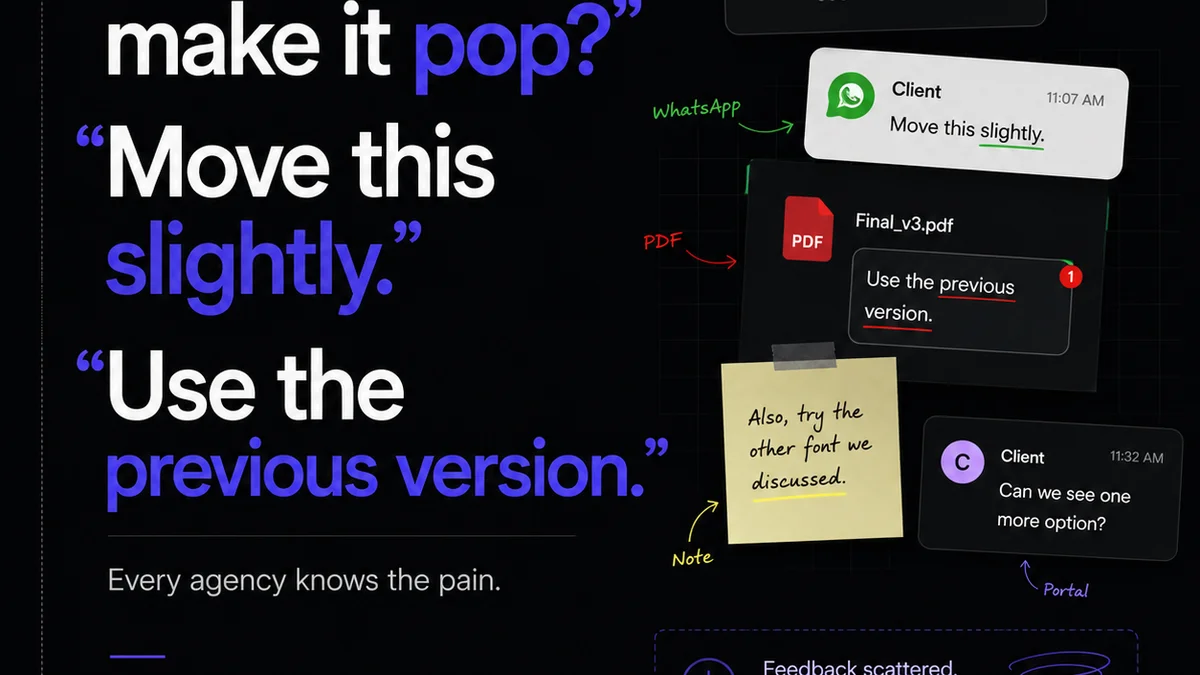
Revue acts as the central nervous system for this process. Instead of scattered emails, Slack messages, and endless comment threads within Figma, Revue provides a single source of truth for client feedback.
Imagine this:
- Client feedback is centralized and organized, linked directly to specific design elements or versions.
- Revision history and approval status are crystal clear, visible to the entire team and stakeholders.
- Quality checks are integrated into your workflow, ensuring nothing slips through the cracks before final delivery.
This structured approach to feedback management amplifies Figma’s inherent productivity, turning potential bottlenecks into smooth, predictable steps.
Final Thought
Figma is a powerful canvas, but true productivity isn't just about drawing faster. It's about building smarter systems, fostering clear communication, and integrating the right tools—both within Figma and around it. How are you ensuring your team’s workflow is as efficient as your designs are beautiful?
Frequently asked questions
What are the most essential Figma plugins for productivity?
Key plugins often include those for content generation (Lorem Ipsum, Unsplash), organization (Cleaner, Similayer), accessibility checks (Stark), and utilities like Autoflow for user flows. The best plugins solve specific team pain points.
How can I improve my team's Figma file organization?
Implement a strict file naming convention, use pages to segment major project areas, name frames logically, and leverage auto layout and component variants for consistency and ease of management.
How do I handle client feedback efficiently in Figma?
Establish clear feedback loops. Use Figma comments for specific points but ensure key decisions are documented. Tools like Revue can centralize feedback outside of scattered comments, providing a clearer audit trail.
Is Figma's auto layout really that important for productivity?
Yes, absolutely. Auto layout is critical for creating flexible, responsive designs and maintaining consistent spacing with minimal manual adjustment. It significantly speeds up layout changes and ensures design integrity.