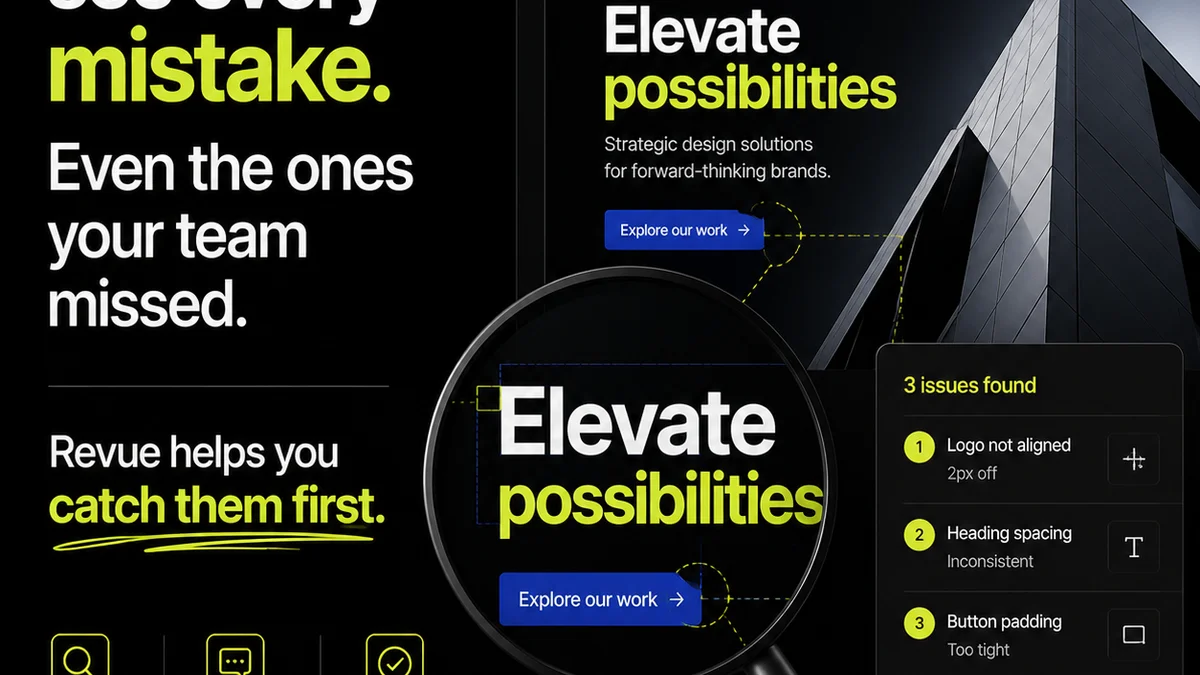
Everyone thinks PDF annotation is simple. Just slap some comments on the page, maybe a strikethrough, and call it a day. It’s a tool for quick notes, right?
None of that is wrong. But it’s incomplete. Dangerously incomplete.
The hard truth is that PDF annotation is a critical node in your creative workflow. Mess it up, and you’re signing up for endless revision cycles, miscommunication, and wasted time. Get it right, and you unlock clarity, speed, and professional polish.
1. The Illusion of Clarity: Why Simple Comments Fail
You’ve seen them. Redlines that look like a toddler attacked the PDF with a crayon. Vague comments like “Make it pop” or “Needs more wow.”
This isn't feedback; it's noise. It creates more work than it solves.
The problem isn't the tool; it’s the approach. We treat PDF annotation like a casual chat when it needs to be a structured conversation.
Why Vague Feedback Hurts
- It’s subjective and open to interpretation.
- It doesn’t tell the creator *how* to fix it.
- It leads to back-and-forth that drains everyone’s energy.
- It can feel personal, even when it’s not intended to.
When feedback is unclear, the revision process becomes a guessing game. And nobody wins that game.
2. Beyond Redlines: Mastering Annotation Tools
Most people know about basic markup tools: highlight, strikethrough, underline, text boxes. But modern PDF annotation software offers much more. Leveraging these features is key to effective communication.
Leveraging Advanced Tools
- Drawing Tools: Use shapes (circles, arrows) to point precisely. Don't just circle a logo; draw an arrow to the specific part of the logo that needs adjustment.
- Stamps: Pre-made stamps like “Approved,” “Rejected,” “Needs Revision,” or even custom ones for agency-specific terms can streamline status updates.
- Measurement Tools: Essential for print work or pixel-perfect digital layouts. Ensure elements are correctly sized and spaced.
- Sticky Notes vs. In-line Text: Sticky notes are great for general comments. In-line text edits are best for direct copy changes. Always be clear which you're using.
- Linking: Some tools allow linking annotations to specific layers or even external documents. Use this for complex projects.
The goal is precision. Every mark, every word, should serve a clear purpose.
Consistency is King
Establish a team-wide standard for annotation. What do certain colors mean? When do you use a sticky note versus an in-line edit? Document this.
This prevents confusion and ensures everyone speaks the same feedback language.
3. The Context Gap: Why Annotations Alone Aren't Enough
A PDF with a thousand comments is still a black box if the reviewer doesn't understand the project's goals, constraints, or previous decisions.
This is where many workflows break down. Feedback is given in a vacuum.
Providing Essential Context
- Project Brief Reference: Link annotations back to specific brief requirements where possible. “This color choice deviates from the brand guidelines outlined in Section 2.1 of the brief.”
- Previous Feedback: If a point has been discussed before, reference it. “As discussed in Revision 1, this headline needs to be shorter.”
- User Experience (UX) Goals: Frame feedback around the intended user. “This button placement might confuse first-time users who expect it to be here based on common design patterns.”
- Technical Constraints: Mention limitations. “This animation might exceed the file size limit for web delivery.”
Annotations are most powerful when they're not just instructions, but explanations rooted in the project's strategy.
4. Structuring Feedback for Actionability
A single PDF can accumulate feedback from multiple stakeholders. Without structure, this becomes a chaotic mess.
Think of it like organizing a messy desk. You need to sort, categorize, and prioritize.
Actionable Feedback Frameworks
Consider these structures:
- By Priority: Mark feedback as Critical, Important, or Optional.
- By Stakeholder: Clearly label who is providing the feedback (e.g., Client, Legal, Art Director).
- By Section/Page: Group comments logically.
- By Type of Change: Differentiate between copy edits, design tweaks, and technical fixes.
Tools that allow for categorization or tagging of comments are invaluable here. This transforms a wall of text into a manageable to-do list.
5. The Human Element: Tone and Professionalism
It’s easy to be blunt when typing a quick comment. But remember, there’s a person on the other end reading it.
Your annotations reflect on you and your agency.
Best Practices for Professional Tone
- Be Respectful: Even critical feedback can be delivered politely.
- Be Constructive: Focus on solutions, not just problems.
- Be Concise: Get to the point without being abrupt.
- Proofread Your Own Comments: Typos in your feedback undermine your credibility.
A positive and professional tone fosters better relationships and smoother collaboration. It’s not just about the work; it’s about the working relationship.
6. Where Revue Fits In
Managing feedback, especially across multiple clients and projects, can quickly become overwhelming. Relying solely on scattered PDF annotations often leads to version control nightmares and missed comments.
Revue is built to bring order to this chaos.
Instead of juggling countless annotated PDFs, you can centralize all client feedback within a single platform. This provides a clear, auditable trail of every comment, revision, and approval.
- Centralized Feedback: All comments live in one place, linked to specific versions of the creative asset. No more hunting for the latest annotated PDF.
- Revision Visibility: Track the history of changes, understand what was addressed and what wasn't, and see who approved what.
- Quality Control: Ensure all feedback has been reviewed and acted upon before final delivery.
By integrating feedback management into your core workflow, you reduce ambiguity and accelerate the path to client approval.
7. The Digital vs. Print Divide
Annotation needs can differ significantly between digital and print deliverables. Understanding these distinctions ensures your feedback is relevant and effective for the final output.
Digital Deliverables
- Interactivity: For websites or apps, feedback might focus on user flow, interaction states (hover, active), and responsiveness across devices. Tools like Figma or Adobe XD offer more robust ways to provide interactive feedback, but PDF annotations can still supplement this for static mockups.
- Performance: Comments might relate to load times, animation smoothness, or accessibility standards, such as Web Content Accessibility Guidelines (WCAG).
- Cross-Browser/Device Compatibility: While less common for static PDFs, if the PDF is intended for a specific digital viewing environment, feedback might touch on rendering consistency.
Print Deliverables
- Color Accuracy: Crucial for print. Feedback often involves specifying CMYK values or ensuring consistency with color proofs. Use measurement tools to verify bleed, trim, and safe areas.
- Typography: Font rendering, kerning, leading, and hyphenation are critical. Ensure fonts are embedded correctly if sharing editable files, or specify exact measurements for fixed layouts.
- Physical Dimensions: Exact measurements for size, margins, bleed, and trim are paramount. Ensure all elements adhere to printer specifications.
When annotating, always consider the final medium. Feedback appropriate for a brochure might be irrelevant for a web banner.
Final Thought
PDF annotation is more than just a digital rubber stamp. It’s a communication tool that, when used with intention and structure, can dramatically improve the efficiency and quality of your creative output.
Are you using your annotation tools to their full potential, or are they just adding to the noise?
Frequently asked questions
What are the most common mistakes in PDF annotation?
Common mistakes include providing vague or subjective feedback (e.g., 'make it better'), using unclear markup that is hard to interpret, failing to provide context for the feedback, and not proofreading annotations for tone or clarity. This often leads to confusion and extended revision cycles.
How can I make my PDF annotations more actionable?
Make annotations actionable by being specific, constructive, and solution-oriented. Clearly state what needs to be changed and why, referencing project goals or previous discussions. Use precise markup tools and consider prioritizing feedback (e.g., critical vs. optional) to guide the revision process effectively.
Should I use sticky notes or in-line edits for PDF feedback?
Use sticky notes for general comments, questions, or overall impressions that don't require a direct text change. Use in-line edits for specific copy changes or text modifications. Being consistent with your chosen method helps the recipient understand the nature of the feedback more quickly.
How does PDF annotation differ for print vs. digital work?
For print, focus on physical attributes like dimensions, color accuracy (CMYK), typography, and bleed/trim areas. For digital, feedback might lean towards interactivity, user experience, accessibility, and responsiveness. Always consider the final medium when providing feedback.