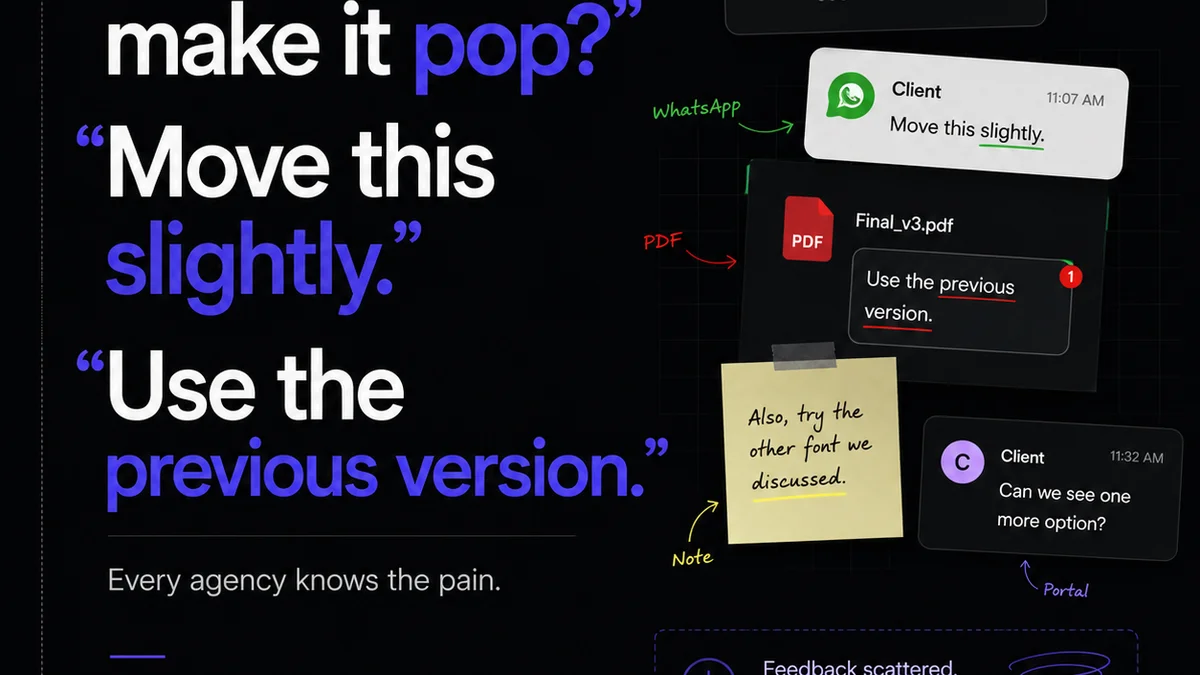
Most agency owners and creative directors think the Adobe vs. Canva debate is about features or price. You’ve heard it a million times: Adobe is for pros, Canva is for beginners. Adobe has the deep toolkit, Canva is the easy button.
None of that is wrong. But it’s incomplete.
The real difference for agencies isn’t the software itself, but how each platform integrates into your client feedback and revision workflow. That’s the hard truth nobody talks about.
1. The Creative Core: Tools vs. Templates
Adobe Creative Cloud, particularly Photoshop, Illustrator, and InDesign, is built for deep, pixel-level control. It’s the digital equivalent of a professional artist’s studio.
This offers unparalleled power for:
- Complex photo manipulation
- Vector illustration with infinite scalability
- Print layout with precise typography and color management
- Building brand systems from the ground up
Canva, on the other hand, is a template-driven design platform. Its strength lies in democratizing design, making it accessible and fast for common marketing assets.
It excels at:
- Rapid social media graphic creation
- Simple presentation decks
- Basic marketing collateral (flyers, brochures)
- Quickly adapting existing brand assets
For an agency, the core question isn't 'Can I make a pretty picture?' It's 'Can this tool handle the *depth* of creative work required for client projects, and how does that impact the revision cycle?'
Creative Depth and Deliverables
If your agency specializes in high-end branding, intricate illustrations, or demanding print production, Adobe’s depth is non-negotiable. The granular control is essential for meeting client specifications and delivering polished, professional work.
However, if your agency focuses on high-volume, fast-turnaround digital marketing assets, Canva’s template-based approach can be a significant efficiency driver. It allows junior designers or even account managers to produce client-ready variations quickly.
The key is understanding the *type* of creative work you do most. Pushing Adobe to do quick social posts can be overkill. Forcing Canva into complex multi-page print layouts will hit a wall, fast.
2. Collaboration & Feedback: Islands vs. Hubs
This is where the workflow truly diverges. How do you handle client feedback and revisions?
Adobe’s traditional workflow often involves:
- Exporting files (PDF, JPG, PNG)
- Emailing or uploading to a file-sharing service
- Receiving feedback via email, spreadsheets, or shared docs
- Manually implementing changes in the source file
- Re-exporting and repeating
This is a fragmented, error-prone process. Each handoff is a potential point of failure, a lost comment, or a version control nightmare.
Canva’s built-in collaboration features are designed for a more integrated experience. Clients or stakeholders can often comment directly on designs within the Canva interface. Teams can work on the same design simultaneously.
For simpler projects, this can streamline feedback significantly.
The Revision Cycle Bottleneck
While Canva offers better *native* collaboration, it’s still limited. Direct commenting is useful, but it doesn’t replace structured feedback management. What happens when feedback is contradictory? How do you track who approved what? How do you ensure the *right* version is being commented on?
Adobe’s power users often rely on external tools or rigorous internal processes to manage feedback. This can involve:
- Dedicated project management software
- Specialized proofing tools
- Strict naming conventions and version control
The challenge is integrating these disparate tools. A designer might get feedback in email, log it in Asana, make changes in Photoshop, and then upload the proof to Frame.io. It’s a multi-tool juggling act.
This complexity is often necessary for high-stakes projects where meticulous tracking and clear audit trails are paramount.
3. Version Control & Approvals: Chaos vs. Clarity
Ask any agency owner about their biggest workflow headache, and version control will be high on the list. Which file is the *final* one?
With Adobe, managing versions typically falls on the user. Saving files locally with names like `Project_Final_v3_ClientEdits_USE_THIS_ONE.psd` is a common, albeit terrible, practice.
Cloud storage helps, but it doesn’t inherently manage design versions or approvals.
Canva’s approach is simpler. It auto-saves and has a basic version history. For template-based work, this is often sufficient. You can revert to previous states easily.
The Approval Audit Trail
However, neither tool inherently provides a robust, auditable approval workflow. Clients might say
Frequently asked questions
Is Canva only for beginners?
Canva is designed for ease of use and speed, making it accessible for beginners. However, its extensive template library and collaboration features can also benefit experienced designers and agencies looking for quick marketing asset creation.
Can I use Adobe tools for social media?
Yes, Adobe tools like Photoshop and Illustrator are powerful for creating any type of visual content, including social media graphics. While they offer more control, they may require more time than template-based solutions for rapid social media posting.
Which tool is better for print design?
For professional print design requiring precise color management, typography control, and complex layout features, Adobe InDesign and Illustrator are generally preferred due to their advanced capabilities.
How does client feedback differ between Adobe and Canva workflows?
Traditionally, Adobe workflows involve exporting files and receiving feedback via email or separate documents, leading to fragmentation. Canva offers more integrated commenting directly within the platform, which can simplify feedback for less complex projects.
Can Canva handle large, complex design projects?
Canva is best suited for simpler, often template-based designs. For highly complex, multi-layered projects with intricate requirements, Adobe Creative Cloud offers the depth and control typically needed.