Most US teams think of Canva as the go-to tool for slapping together a quick social media graphic or a last-minute flyer. And sure, it’s great for that. But if that’s your only use case, you’re leaving a mountain of efficiency on the table.
The real power of Canva for marketing asset creation isn’t its simplicity; it’s its potential for structured, scalable design work, even for complex projects and demanding clients.
1. Beyond Basic Templates: Building a Brand System in Canva
The common assumption is that using Canva means sacrificing brand integrity. That you’re stuck with generic templates that scream ‘DIY’. This isn’t true if you treat Canva like any other design system.
The hard truth? You need to build your brand’s foundation *within* Canva, not just pull elements from outside.
Brand Kits: Your Centralized Source of Truth
Every serious US team needs to leverage Canva’s Brand Kit feature. This is where you lock down your visual identity.
- Colors: Define your primary, secondary, and accent palettes. Ensure consistency across all assets.
- Fonts: Upload your brand’s licensed fonts. No more hunting for substitutes.
- Logos: Store approved logo variations (color, black and white, stacked, horizontal).
- Templates: Create and save your own reusable templates for recurring asset types.
This isn’t just about convenience. It’s about ensuring every team member, from junior designer to account manager, has access to the correct, on-brand elements. This drastically reduces errors and rework.
Consistent Layouts and Grids
Design systems rely on predictable structures. Canva allows you to build these.
Use guides and grids within your templates to ensure consistent spacing, alignment, and visual hierarchy. This is crucial for a professional look, especially when producing a high volume of assets for campaigns.
2. Streamlining Workflow: From Brief to Approval
Creating marketing assets isn’t just about the final design; it’s the entire process. How do you move from a client brief to a polished, approved asset efficiently?
Canva offers features that, when used correctly, can significantly speed up this cycle for US-based creative teams.
Templatized Campaigns
For multi-asset campaign deliverables, build a master template. This template should include core branding and structural elements that will be consistent across all variations.
Then, create copies for each specific asset needed: social posts (various sizes), banner ads, email headers, print flyers, etc. This ensures a unified look and feel without starting from scratch each time.
Collaboration Features: Real-time and Asynchronous
Canva’s real-time collaboration is powerful, but often overlooked for complex projects. It’s ideal for quick internal reviews or when a client is comfortable providing live feedback.
More importantly for structured workflows, use the commenting features for asynchronous feedback. Tag specific elements for discussion. This keeps feedback contextual and reduces the need for lengthy email chains or separate review meetings.
Version Control (Manual but Effective)
While not as robust as dedicated DAM systems, you can implement simple version control within Canva.
- Naming Conventions: Use clear, descriptive file names that include project, asset type, version number, and date (e.g., `ProjectX_SocialPost_V3_20231027.canva`).
- Duplicate and Rename: Before making significant changes, duplicate your design. This creates a backup.
- Use Folders: Organize projects meticulously within Canva’s folder structure.
This disciplined approach prevents accidental overwrites and makes it easy to revert to previous states if necessary.
3. Advanced Techniques for Polished Assets
Moving beyond simple graphics requires understanding some more advanced capabilities. These elevate your marketing assets from amateur to professional.
Mastering Layers and Grouping
Treat your Canva designs like any other design file. Use layers effectively. Group related elements together.
This makes complex designs manageable. It allows for easier manipulation of individual components or entire sections without disrupting the overall layout.
Utilizing Effects and Transparency
Canva offers a range of effects (shadows, outlines, glows) and transparency controls.
Use these subtly to add depth and visual interest. Overuse leads to a cluttered, unprofessional look. Apply them strategically to highlight key elements or create visual hierarchy.
Data Visualization: Charts and Infographics
Canva has built-in tools for creating charts and graphs. These are invaluable for marketing reports, presentations, and data-driven social content.
Import data directly or input it manually. Customize the appearance to match your brand. This turns raw numbers into compelling visual stories.
Video and Animation Basics
Many marketing assets now require motion. Canva’s video editing capabilities are surprisingly robust for a design tool.
- Simple Edits: Trim clips, add transitions, overlay text and graphics.
- Animated Elements: Use pre-set animations for text and graphic elements to add dynamism.
- Music and Audio: Add background music or voiceovers from their library or upload your own.
This allows teams to produce short video ads, social media clips, and animated explainers without needing complex video editing software for every task.
4. Quality Assurance: The Final Check
Even with streamlined workflows, quality control is paramount. A single error can undermine client confidence.
How do you ensure your Canva-produced assets meet your agency’s standards before delivery?
Checklist Approach
Develop a standard QA checklist for all marketing assets. This should cover:
- Brand Compliance: Correct logos, colors, fonts.
- Accuracy: Spelling, grammar, numerical data.
- Technical Specs: Correct dimensions, file formats, resolution.
- Legibility: Text is readable at intended sizes.
- Call to Action: Is the CTA clear and correct?
- Links: (If digital) Do all links work and go to the correct destinations?
This systematic review catches common oversights.
Reviewer Roles
Assign specific review roles. Perhaps a junior designer does the initial check, followed by a creative lead or project manager. Clear ownership prevents things from falling through the cracks.
Export Settings Mastery
Understand Canva’s export options. Different use cases require different settings.
- For Print: Use PDF Print for the highest quality, ensuring CMYK color mode is selected if available and appropriate.
- For Web/Social: Use JPG or PNG. PNG is better for graphics with transparency. Optimize file size where possible.
- Video: MP4 is standard. Choose appropriate resolution (1080p is common).
Incorrect export settings are a frequent cause of quality issues.
Where Revue Fits In
You’re building sophisticated marketing assets in Canva, collaborating internally, and managing multiple versions. The next logical step is centralizing the feedback and approval process.
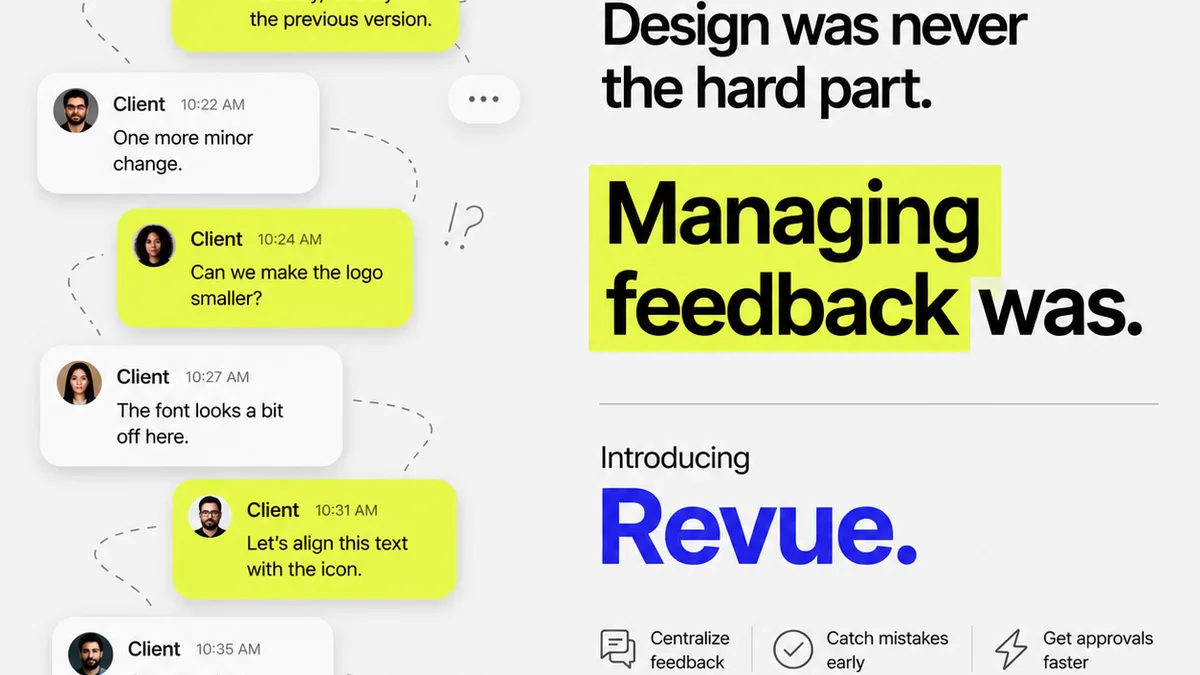
This is where a tool like Revue becomes essential. Instead of fragmented email threads, scattered Slack messages, or confusing annotation tools, Revue provides a single source of truth for client feedback on creative work.
Imagine uploading your final Canva export (e.g., a PDF or JPG) directly into Revue. Your client can then review it, leaving contextual comments directly on the asset. You see all feedback, revisions, and approvals in one clear, organized stream. This visibility transforms the often chaotic revision process into a manageable, trackable workflow, ensuring your high-quality Canva assets get approved faster and with fewer headaches.
Final Thought
Canva is more than a design tool; it’s a platform for scalable creative production. For US marketing teams, embracing its full potential means moving beyond basic templates and building robust, brand-aligned systems within the tool itself.
Are you leveraging Canva to its full capacity, or are you still just scratching the surface?
Frequently asked questions
Can Canva really be used for professional marketing asset creation by agencies?
Yes. While often perceived as a simple tool, Canva's Brand Kit, template capabilities, and collaboration features allow agencies to create consistent, on-brand marketing assets efficiently. The key is to establish a structured workflow and leverage its advanced features beyond basic templates.
How can US teams ensure brand consistency when using Canva?
Utilize Canva's Brand Kit to upload and lock down brand colors, fonts, and logos. Create custom templates with defined layouts and grids. Enforce these elements consistently across all asset creation to maintain brand integrity.
What are the best practices for client feedback and approvals with Canva assets?
While Canva has commenting features, for a more robust and trackable process, integrate a dedicated feedback and approval tool. This centralizes communication, provides clear version history, and streamlines the approval cycle, reducing miscommunication and speeding up delivery.
Is Canva suitable for creating video marketing assets?
Yes, Canva offers basic video editing capabilities, including trimming clips, adding transitions, overlaying text and graphics, and incorporating music. It's suitable for creating simple social media videos, animated explainers, and short promotional clips without needing complex video editing software.