Everyone thinks Canva is just for simple social posts or quick flyers. For US teams, that’s often true. But it’s also a dangerous oversimplification. Many agencies are leaving serious power on the table by not leveraging Canva’s more advanced features for client work and internal workflows.
The hard truth? If you’re only using Canva for basic design, you’re missing out on tools that can streamline feedback, manage revisions, and even improve asset quality control. It’s not just about making pretty pictures; it’s about making your agency run better.
1. Centralizing Brand Assets Beyond the Basics
Most agencies use Canva to store logos and brand colors. That’s a start, but it’s not enough for complex client relationships. Think bigger.
Consistent Brand Kits for Multiple Clients
A robust Brand Kit is non-negotiable. But for agencies serving multiple clients, this means meticulously organizing kits for each. This isn’t just about uploading logos; it’s about defining typography hierarchies, setting standard color palettes (primary, secondary, accent), and uploading approved imagery or icons.
When done right, a Brand Kit becomes a single source of truth. Your entire team, and even clients during collaboration, can access approved assets instantly. This prevents off-brand work and saves countless hours chasing down the right file version.
Beyond Logos: Documenting Design Tokens
Consider uploading not just colors, but specific hex codes and usage guidelines. For fonts, upload the actual font files (if licensed for distribution) or clearly document the exact names and weights to be used. This moves beyond a visual guide to a more actionable set of design tokens.
2. Streamlining Client Feedback and Approvals
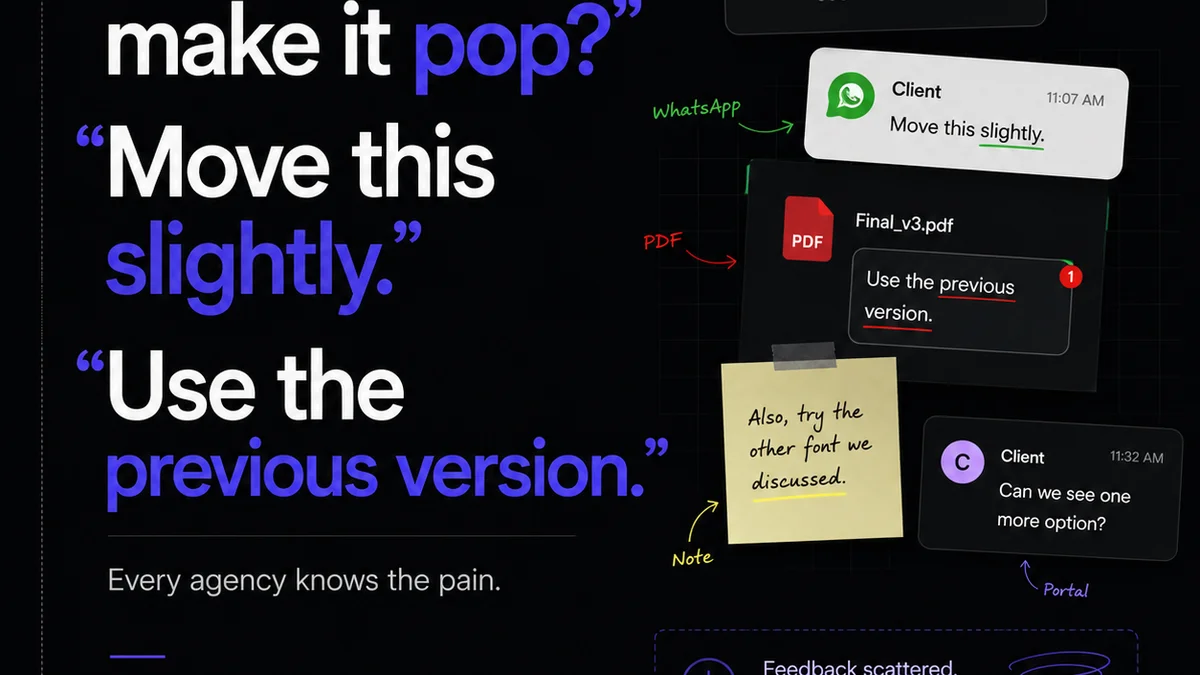
This is where many agencies stumble. Email chains get lost, Slack messages are buried, and pinpointing specific feedback on a static PDF is a nightmare. Canva offers built-in tools to combat this chaos.
Direct Commenting on Designs
Canva’s commenting feature is a game-changer for client collaboration. Instead of exporting and emailing, clients can click directly on elements within the design to leave feedback. This context is invaluable.
For US teams, this means faster turnaround times. Clients can see exactly what needs changing, reducing the back-and-forth of clarifying vague instructions. It’s a more intuitive way to communicate design revisions.
Version History and Snapshots
Canva automatically saves version history. This is crucial for tracking the evolution of a design and for reverting to previous states if a new direction proves problematic. Treat these snapshots as save points in your project.
Don’t just rely on the auto-save. Make it a habit to manually save key milestones or versions with descriptive names. This provides an audit trail and peace of mind.
Approval Workflows (with a Caveat)
Canva allows you to share designs for review and approval. While not a full-blown Digital Asset Management (DAM) system, it offers a basic layer of approval tracking. You can see who has viewed the design.
However, this is where the contrarian view comes in. Relying *solely* on Canva for final client approvals can be risky for larger projects. Its approval features are more suited for internal checks or smaller client interactions. For critical, final sign-offs on major campaigns, you still need a robust system that provides irrefutable proof of approval and integrates with project management.
3. Leveraging Templates Strategically
Templates are often seen as the main draw of Canva. For agencies, they can be a trap if not used correctly.
Custom Templates for Repeatable Workflows
Instead of using Canva’s public templates, build your own. Create templates for recurring client deliverables: weekly social media reports, monthly email newsletters, pitch decks, or even internal process documents. Standardize these based on your agency’s best practices.
This isn't about saving design time; it's about enforcing process. A standardized report template ensures all necessary data points are included and presented consistently, client after client.
Team-Wide Template Libraries
Organize these custom templates into folders or team libraries. This ensures consistency across your entire US team. Anyone can pull a template and know it adheres to established brand guidelines and includes all required elements.
4. Enhancing Team Collaboration and Efficiency
Canva isn't just an external-facing tool; it's a powerful internal collaboration platform when utilized correctly.
Shared Folders and Team Management
Organize client projects into shared folders. Assign roles and permissions within your Canva teams. This controls access and ensures team members are working with the latest approved assets and designs.
Think of it like a lightweight project management system for design assets. Clear folder structures prevent confusion and wasted time searching for files.
Content Planning Integration (Basic)
While not a full content calendar, you can use Canva’s folder structure and naming conventions to loosely plan content. Group designs by campaign, date, or client to provide a visual roadmap.
Utilizing Canva’s API (for Advanced Teams)
For technically savvy agencies, Canva’s API opens up possibilities for deeper integration. Connect Canva to your CRM, project management tools, or other internal systems to automate workflows, pull data, or push designs.
This is where you move from using Canva as a design app to using it as a component in a larger, automated workflow. It requires development resources but can yield significant efficiency gains.
5. Quality Control and Brand Consistency Checks
Maintaining brand integrity across a multitude of projects and clients is a constant battle. Canva offers features that can help, but they require discipline.
Standardized Checklists within Designs
Create a simple checklist within a Canva template page. Include items like: “Proofread all copy,” “Check color contrast ratios,” “Verify all links are active,” “Confirm image resolution.”
This internal checklist acts as a prompt for designers before final handover. It’s a low-tech way to embed QA into the design process itself.
Using Brand Kits for Automated Checks (Limited)
While Canva doesn’t perform automatic accessibility checks or deep brand compliance scans, a well-maintained Brand Kit acts as a visual guide. Designers can quickly compare their work against the defined colors, fonts, and logos.
The real power here isn't automation, but the accessibility of the rules. When the brand guidelines are just a click away within the design environment, adherence increases.
Where Revue Fits In
Canva excels at creation and basic collaboration. But as projects scale, managing the sheer volume of feedback, revisions, and approvals becomes unwieldy. This is where a tool like Revue becomes essential for US agencies.
Revue provides a centralized hub for *all* client feedback, regardless of where it originated. Instead of scattered emails and Slack messages, you have one place to track every comment, every revision request, and every approval status. This visibility is critical for keeping projects on track and clients happy.
Imagine a client provides feedback via email, another via a call, and a third via a comment in Canva. Revue consolidates this, creating a clear, actionable list of revisions. It eliminates the
Frequently asked questions
Can Canva replace a full Digital Asset Management (DAM) system for agencies?
No, Canva's asset management features are basic. While it offers Brand Kits and version history, it lacks the robust metadata, advanced search, and granular permissions of a dedicated DAM. It's best used as a complement, not a replacement, for core design asset storage and distribution.
How can US agencies ensure brand consistency across multiple clients in Canva?
Meticulously build and maintain separate Brand Kits for each client, including logos, color palettes, typography, and approved imagery. Use custom-built templates for repeatable deliverables and organize them in shared team folders. Regular team training on brand guidelines is also key.
Is Canva’s API worth the investment for an agency?
It depends on your agency's technical capabilities and workflow needs. For agencies with complex, repetitive processes, integrating Canva via its API with other tools (like CRMs or PM software) can unlock significant automation and efficiency. However, it requires development resources.
How does Canva handle client approvals?
Canva offers a sharing feature where designs can be sent for review, and viewers can comment. While you can see who has viewed the design, it's not a formal, auditable approval system. It's suitable for informal approvals or internal checks but may not suffice for critical, legally binding sign-offs.