Everyone thinks Canva is simple. Drag, drop, done. It’s the go-to for fast social graphics, event flyers, and maybe the occasional quick presentation deck. And none of that is wrong. But it’s incomplete.
For US creative teams juggling multiple clients, demanding revision cycles, and the need for brand consistency, treating Canva as just a template tool is a missed opportunity. The real power of Canva for professional teams lies in building streamlined, scalable workflows that integrate seamlessly with your existing processes.
1. Centralize Your Brand Assets
The biggest drain on creative time isn't design; it's hunting for assets. Logos, fonts, color palettes, approved imagery – without a central hub, your team wastes hours searching through shared drives, email chains, or worse, recreating elements from scratch.
The Brand Kit is Your Foundation
Canva's Brand Kit is more than just a place to upload your logo. It's your single source of truth for all client-specific branding.
- Logos: Upload primary, secondary, and favicon versions.
- Color Palettes: Define hex codes for primary, secondary, and accent colors.
- Fonts: Upload custom fonts or select from Canva's library. Ensure licensing is confirmed.
- Templates: Save frequently used layouts or document types as brand templates.
This isn't just about branding; it's about efficiency. When every team member can instantly access approved assets, consistency skyrockets, and production time plummets.
2. Standardize Your Design Process
Ad-hoc design processes lead to chaos. Without clear steps, approvals get missed, feedback gets lost, and final deliverables don't match the brief.
Templates as Guardrails, Not Gates
Use Canva's templating features strategically. Think of them as starting points that enforce brand guidelines and core layout structures, not rigid boxes.
- Master Templates: Create core templates for recurring project types (e.g., social media campaigns, pitch decks, reports).
- Client-Specific Templates: Duplicate master templates and customize them with client branding and specific content placeholders.
- Version Control Lite: While Canva doesn't have formal version control, naming conventions and clear folder structures can help manage iterations.
The key is to build a library of templates that guides your team towards consistent, high-quality output without stifling creativity. This is where robust folder management becomes critical.
3. Streamline Client Feedback and Approvals
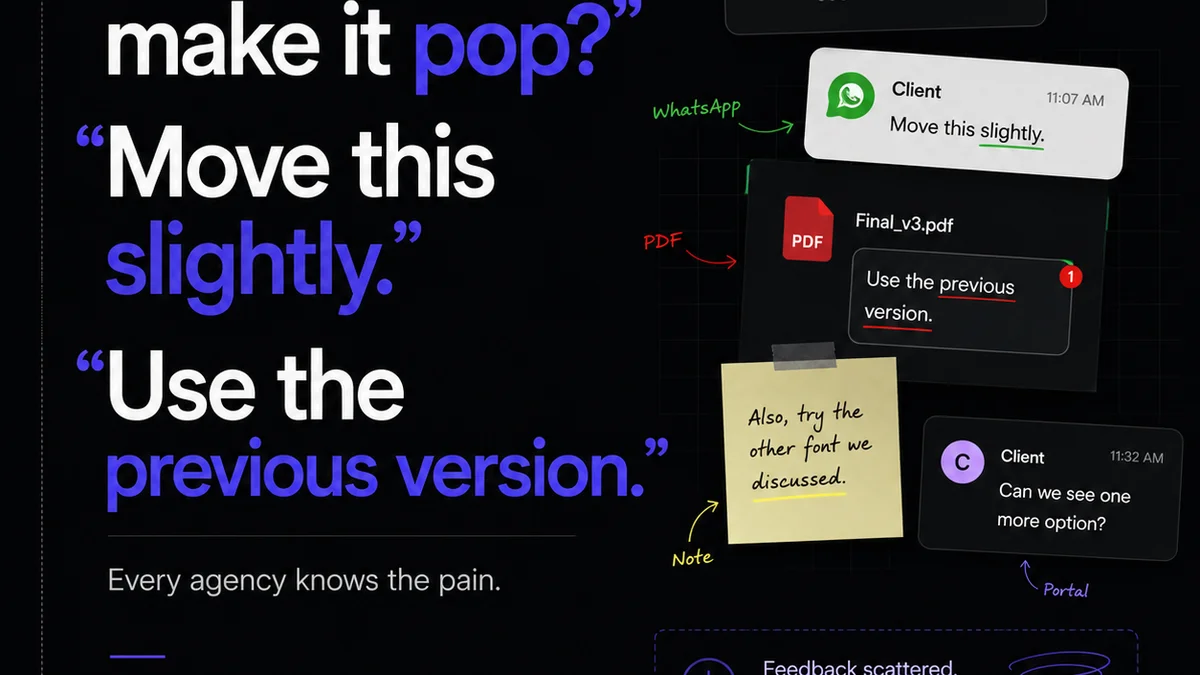
This is where most creative workflows break down. Email chains get long, feedback is buried, and getting a definitive sign-off feels like pulling teeth.
Canva's collaboration features are built to solve this. If you’re not using them, you’re leaving efficiency on the table.
Leverage Direct Collaboration Tools
- Share for Review: Generate a shareable link that allows clients or stakeholders to comment directly on the design.
- Direct Comments: Use the comment feature to tag specific elements or ask clarifying questions.
- Assign Tasks: For internal teams, assign specific design elements or revisions to team members within Canva.
The beauty here is that feedback lives *with* the design. No more deciphering screenshots or hunting through old emails for that one crucial piece of feedback.
A Note on External Sharing
When sharing with clients, be explicit about the process. Provide clear instructions on how to use the review link and what constitutes final approval. This sets expectations and minimizes back-and-forth.
4. Manage Revisions Effectively
Revisions are the lifeblood of creative work. But managing them without a clear system turns your project into a tangled mess.
Visibility is Key
Canva's commenting and sharing features provide a level of visibility that traditional methods lack.
- Comment Threads: Track conversations around specific feedback points.
- Resolution: Mark comments as resolved once addressed, providing a clear audit trail.
- Team Collaboration: Internal teams can see all client feedback and internal discussions in one place.
This visibility ensures that no feedback gets lost and that the team understands the context behind each change request. It helps prevent scope creep by making the revision history transparent to all parties.
5. Ensure Quality and Brand Compliance
The final hurdle: ensuring the delivered asset is not only on-brand but also technically sound.
Checklists and Standards
While Canva doesn't have built-in QA checklists, you can integrate this step into your workflow.
- Internal Review Process: Before sending to a client for final approval, conduct an internal QA. Use a simple checklist: correct logo, correct fonts, correct colors, no typos, all links functional (if applicable).
- Export Settings: Understand Canva's export options. For print, ensure correct resolution and color profiles. For web, optimize file sizes.
- Accessibility: For digital assets, consider basic accessibility. Ensure sufficient color contrast and legible font sizes. Tools like the WebAIM Contrast Checker can help.
This final check prevents embarrassing errors and ensures your agency's reputation for quality remains intact.
Where Revue Fits In
Canva provides the canvas and the collaborative tools for design creation and feedback. But managing the entire lifecycle of client creative projects – from initial brief to final delivery across multiple clients and projects – requires a dedicated system.
Revue acts as the central nervous system for your agency's creative operations. It integrates with your existing tools, including the feedback loops initiated in Canva, to provide a unified view of project status, approvals, and revisions.
- Centralized Feedback Hub: While Canva captures direct design feedback, Revue can consolidate all project-related communication, ensuring client feedback isn't siloed within individual design files.
- Revision Tracking: See at a glance which versions have been approved and which are pending, maintaining a clear audit trail across all your projects.
- Quality Control Workflow: Integrate your QA checklists and approval gates into Revue, ensuring every piece of creative work passes muster before it’s finalized.
- Project Visibility: Gain a bird's-eye view of all ongoing projects, client statuses, and team workloads, preventing bottlenecks and ensuring timely delivery.
Revue complements your Canva workflow by adding structure, oversight, and accountability to the entire creative production process.
Final Thought
Canva is a powerful tool, but its true value for professional US creative teams emerges when it's embedded within a deliberate, structured workflow. It’s not just about making pretty pictures faster; it’s about building a scalable, reliable system for client creative delivery.
Are you using Canva to its full potential, or are you still leaving efficiency on the table?
Frequently asked questions
How can I ensure brand consistency when using Canva for multiple clients?
Utilize Canva's Brand Kit feature to centralize logos, color palettes, and fonts for each client. Create master templates for recurring project types and then customize them with specific client branding, ensuring a consistent look and feel across all deliverables.
What is the best way to get client feedback using Canva?
Use Canva's 'Share for Review' link. This allows clients to comment directly on the design, keeping feedback contextual and organized. You can then use the comment threads to track discussions and mark feedback as resolved.
Can Canva help manage design revisions?
Yes, Canva's collaboration features, particularly the commenting system, help manage revisions by keeping all feedback and discussions tied to the design itself. Resolving comments provides a clear history of changes made.
How does Revue integrate with a Canva workflow?
Revue acts as a central project management hub. While Canva handles design creation and direct feedback, Revue consolidates all project communications, tracks approvals and revisions across multiple projects, and provides overall visibility into your agency's creative operations.