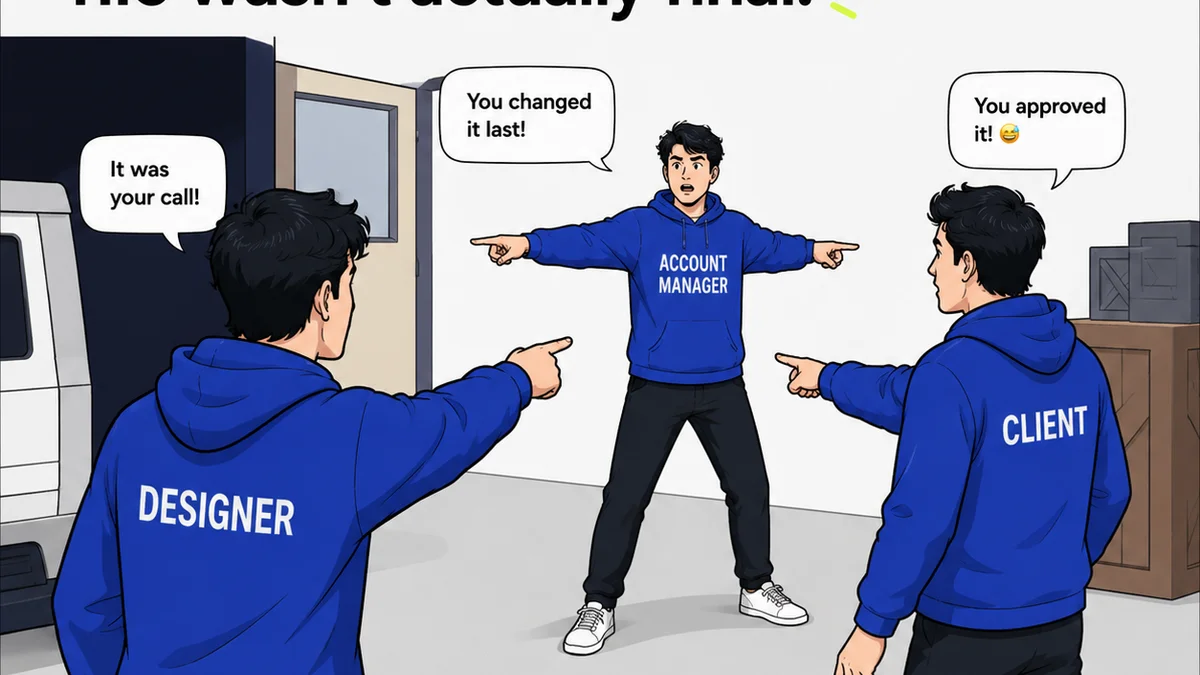
Everyone thinks their Figma workflow is the problem. Slow file loading, confusing component libraries, endless design reviews. It’s easy to point at the software and say, “This is where it breaks.”
None of that is wrong. But it’s incomplete.
The real bottlenecks in your Figma workflow aren’t technical. They’re human.
They’re the communication breakdowns, the unclear feedback loops, the lack of defined processes. Your agency or design team is likely drowning in inefficiency, and Figma is just the visible symptom.
1. The Myth of the 'Perfect' Design System
A robust design system is crucial. It standardizes UI elements, speeds up design, and ensures brand consistency. But many teams get bogged down trying to build an all-encompassing, absolutely perfect system from day one.
Perfection is the Enemy of Progress
This pursuit of a flawless design system often leads to analysis paralysis. Teams spend weeks, even months, debating naming conventions, component states, and accessibility standards before a single usable screen is designed.
Meanwhile, projects stall. Clients get impatient. The design system becomes another hurdle, not a help.
Focus on Core Components First
Start with the essentials. What are the most frequently used elements? Buttons, inputs, typography styles, basic layout grids. Get those right and make them functional.
- Buttons (primary, secondary, tertiary, states: default, hover, pressed, disabled)
- Typography (headings, body text, links)
- Color palettes (primary, secondary, accent, grays)
- Basic form elements (input fields, checkboxes, radio buttons)
Expand the system iteratively as you encounter new needs or design more complex interfaces. Don't try to boil the ocean.
Documentation Matters, But Keep it Lean
Clear documentation is key for adoption. But overly complex documentation can be as much a barrier as no documentation at all. Keep guides concise, task-oriented, and easily accessible within Figma itself.
Use Figma’s built-in descriptions for components and styles. A simple overview page with links to key sections is often enough.
2. Feedback Loops: The Silent Project Killer
This is where most creative agencies bleed time. Unstructured, vague, and often contradictory feedback. It’s not just annoying; it actively derails your Figma workflow.
Assumption: More Feedback is Better
It’s not about the volume of feedback; it’s about the quality and clarity. A dozen vague comments like “make it pop” or “I don’t like this” are useless. They force designers to guess, leading to wasted iterations.
The Hard Truth: Feedback Needs Structure
Without a defined process, feedback becomes a chaotic back-and-forth that eats up billable hours and frays nerves. Designers spend more time deciphering requests than designing.
This is a prime area where a centralized platform can make a massive difference. Tools that allow for contextual comments directly on the design, version tracking, and clear approval stages cut through the noise.
Actionable Steps to Tame Feedback
- Define Feedback Givers: Who is authorized to give feedback? Limit the number of stakeholders providing input to a core group.
- Set Feedback Deadlines: Establish clear windows for feedback submission. No more feedback arriving weeks after a review.
- Mandate Specificity: Train clients and internal stakeholders to provide specific, actionable feedback. Ask: “What problem are you trying to solve with this change?”
- Use Visual Annotation Tools: Direct feedback on the design itself. Point to specific elements and explain the issue clearly.
- Centralize Communication: Avoid scattered email threads and Slack messages. All feedback should live in one place, tied to the specific design version.
3. Version Control: The Ghost in the Machine
Figma has robust version history, but many teams treat it like a black box. They either don’t use it, or they use it haphazardly, creating confusion and lost work.
Assumption: Figma Auto-Saves Everything, So We're Fine
Figma’s auto-save is a lifesaver. But it doesn’t inherently provide the *context* needed for effective version management in a team environment. Relying solely on auto-save means you might have dozens of unnamed, undated snapshots that are impossible to navigate.
The Hard Truth: Contextual Versioning is Key
You need to know *why* a version was created, *what* changed, and *who* made the changes. This narrative layer is critical for reverting to previous states, understanding design evolution, and facilitating clear handoffs.
Think of it like Git for designers. Every significant milestone should have a clearly named version with a brief description.
Best Practices for Figma Versioning
- Name Versions Meaningfully: Instead of “Version 5,” use names like “v1.2 – User Testing Feedback Implemented” or “v1.1 – Homepage Hero Redesign.”
- Add Descriptions: Briefly explain the purpose of the version. What was addressed? What decisions were made?
- Establish a Cadence: Define when versions should be created. After major feedback rounds? Before a client presentation? Before handing off to development?
- Use Branching for Major Experiments: If you're exploring radically different design directions, use branching to keep the main file clean. Merge back successful experiments.
This structured approach transforms Figma’s version history from a passive log into an active tool for project management and design iteration.
4. Handoff to Development: The Great Divide
The transition from design to development is notorious for friction. Misinterpretations, missing assets, and unclear specifications lead to costly rework and delays.
Assumption: Developers Can Just 'Read' the Figma File
Figma’s inspect panel is powerful. Developers can see measurements, colors, and export assets. But this assumes a perfect understanding of design intent and context. It often misses the nuances of user flow, interaction states, and the “why” behind design decisions.
The Hard Truth: Handoff is a Collaboration, Not a Delivery
A smooth handoff requires more than just handing over a file. It requires clear communication, well-organized design files, and a shared understanding of the project goals.
This is where clear documentation within Figma, and potentially a dedicated platform, becomes essential. Developers need more than just specs; they need context.
Strategies for Seamless Handoffs
- Organize Your Files Logically: Use pages and frames effectively. Clearly separate artboards for different states or flows.
- Use Auto Layout and Constraints: Build designs that are inherently responsive and flexible. This reduces the need for developers to manually interpret spacing and sizing across different screen sizes.
- Annotate Complex Interactions: Don’t rely on developers to guess how micro-interactions or complex state changes should work. Add notes or use prototyping features.
- Establish a Clear Handoff Checklist: What needs to be delivered? What assets? What documentation? What review process?
- Involve Developers Early: Bring developers into the design process earlier. They can identify technical constraints or suggest more efficient implementation strategies.
A well-documented, well-organized Figma file, coupled with proactive communication, turns the handoff from a potential crisis into a predictable step.
5. Scope Creep: The Insidious Workflow Killer
This isn't strictly a Figma issue, but it wreaks havoc on any design workflow, including those using Figma. Uncontrolled expansion of project scope leads to missed deadlines, budget overruns, and burnt-out teams.
Assumption: 'Just One More Thing' is Harmless
It rarely is. Each small change, each added feature, each
Frequently asked questions
What are common signs of Figma workflow bottlenecks?
Common signs include slow file performance, difficulty finding or updating components, excessive time spent on feedback rounds, and friction during the handoff to development. These symptoms often point to underlying process or communication issues rather than just the software itself.
How can I improve feedback quality in Figma?
Improve feedback by establishing clear guidelines for stakeholders, mandating specificity in comments, setting deadlines for feedback, and centralizing all comments within Figma or a dedicated platform. This ensures feedback is actionable and reduces ambiguity.
Is a complex design system the solution to Figma workflow issues?
Not necessarily. While a design system is valuable, over-engineering it can create its own bottlenecks. Start with core components and expand iteratively. Focus on usability and clear documentation over absolute perfection from the outset.
How does version control impact Figma workflow efficiency?
Effective version control, with meaningful names and descriptions for each saved version, allows teams to easily track design iterations, revert changes, and understand project evolution. This structured approach prevents lost work and confusion, especially in collaborative environments.