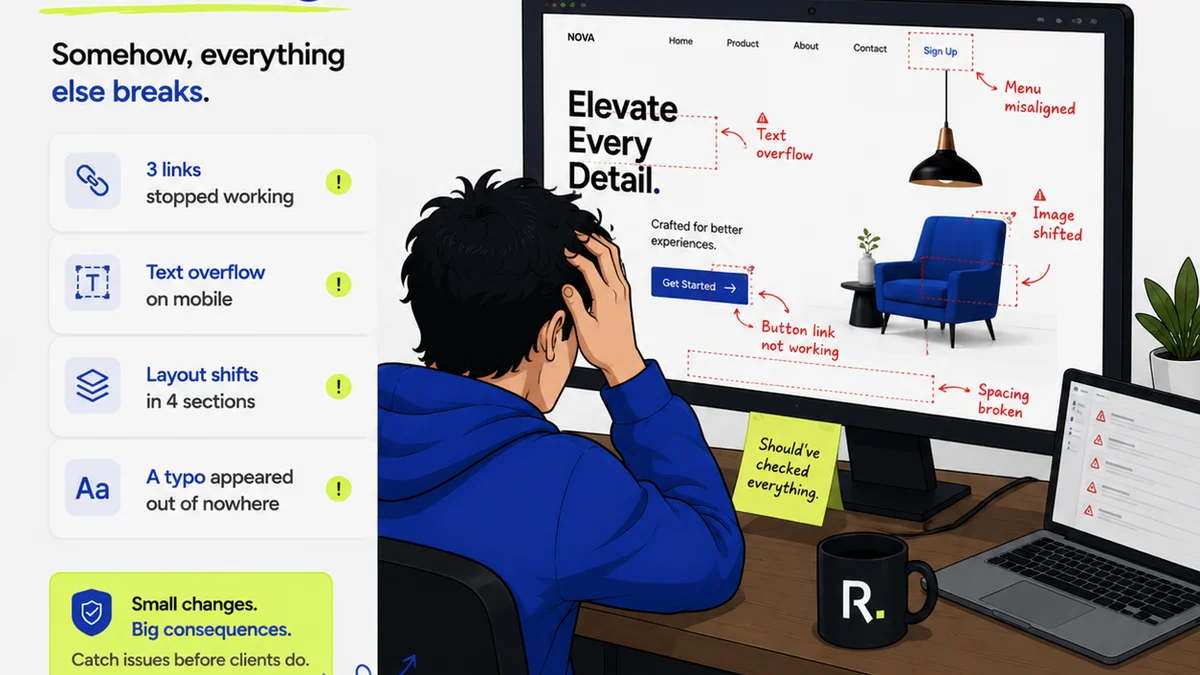
Everyone thinks using Figma's built-in commenting and annotation features is enough for client feedback. That’s not wrong. But it’s incomplete.
The hard truth? Relying solely on basic comment threads turns your design files into a chaotic mess of scattered notes, missed revisions, and endless back-and-forth. It’s slow. It’s inefficient. And it’s costing you time and money.
Mastering Figma review tools means moving beyond simple annotations to a structured workflow that drives clarity and speeds up approvals. It’s about making feedback actionable, not just visible.
1. Centralize Your Feedback Strategy
The biggest mistake agencies make is treating feedback as an afterthought. It’s a critical part of the design process, not just a final check.
A robust feedback strategy ensures that every stakeholder knows how, when, and where to provide input. This prevents the dreaded
Frequently asked questions
How can I ensure all feedback in Figma is addressed?
Utilize Figma's built-in features like marking comments as 'resolved' and create a clear process for assigning feedback items to specific team members. Regular check-ins on open comments are crucial.
What's the difference between Figma comments and annotations?
Comments are threaded conversations tied to specific elements or areas, ideal for detailed discussions. Annotations are more visual, like sticky notes or drawings, useful for quick visual pointers or general markup.
Can Figma handle multiple rounds of revisions effectively?
Yes, by establishing a clear version history and using comments to track specific changes between versions. Tools like Revue can further help by centralizing all feedback and approvals related to specific design versions.
How do I manage feedback from non-designers in Figma?
Provide clear instructions on how to leave feedback. Use annotations for quick pointers and comments for detailed explanations. Regularly review and clarify feedback with non-designers to ensure understanding.