Everyone thinks they’re using Figma for design. And they are. But that’s only half the story.
The assumption? That mastering Figma means mastering its features: components, auto layout, prototyping. None of that is wrong. But it’s incomplete.
The hard truth is that *how* you integrate Figma into your agency’s broader operational workflow is what separates the good from the great.
It’s not about the pixels. It’s about the process.
1. Beyond the Canvas: Figma as a Communication Hub
Too many agencies use Figma in a silo. Designers work in it, then export jpegs or PDFs to send for feedback. Sound familiar?
This creates friction. It kills the dynamic nature of design iteration.
The best agencies understand Figma’s potential as a communication hub. Every stakeholder, from client to account manager to QA, should have direct, contextual access to the designs.
The Cost of Exporting
- Lost context: Feedback arrives detached from the live design.
- Version control nightmares: Which PDF is the latest?
- Delayed feedback loops: Waiting for exports and imports slows everything down.
- Increased errors: Misinterpretations lead to rework.
You’re not just designing; you’re collaborating. Your tool should reflect that.
2. Standardizing Your Figma Setup for Scalability
A haphazard Figma file structure is a recipe for chaos, especially as projects grow or teams expand.
Think about your typical project:
- Multiple artboards for different breakpoints.
- Pages for different features or sections.
- Libraries for reusable components.
- A clear system for naming conventions.
Without standardization, onboarding new designers becomes a struggle. Finding specific assets feels like a treasure hunt.
The Building Blocks of a Scalable File
- Consistent Naming Conventions: Labels should be clear, concise, and predictable. Think `Button/Primary/Default` not `Big Blue Button 3`.
- Organized Pages: Use pages to separate distinct areas of your project. Examples: `_Cover`, `_StyleGuide`, `_Components`, `[Feature A]`, `[Feature B]`, `Archive`. The underscore prefix often keeps these at the top.
- Master Component Libraries: Ensure all shared components live in a dedicated library file, published and updated regularly.
- Clear Artboard Structure: Group related artboards. Use frames and auto layout to manage spacing and responsiveness within artboards.
- Defined Workflow States: Use prefixes or separate pages for states like `WIP` (Work In Progress), `Review`, `Approved`.
This isn’t about rigid rules; it’s about creating a common language within your files.
It’s about efficiency.
3. Integrating Feedback Loops Directly into Figma
This is where most agencies stumble. They treat feedback as an external event.
Instead, embed it.
Figma’s commenting feature is powerful. But it’s often underutilized, or worse, ignored.
The real win comes when feedback is structured and actionable, directly on the relevant element.
From Noise to Signal: Actionable Feedback
- Context is King: Comments should always be placed directly on the element they refer to.
- Clear Ownership: Assign comments to specific team members or roles.
- Status Tracking: Use comment statuses (Open, Resolved) to track progress.
- Client Access (Controlled): Grant clients view-only access to specific frames or pages for feedback, guiding them on *how* to provide effective comments.
- Internal Review Processes: Use comments for designer-to-designer critiques before client review.
This transforms feedback from a passive download to an active, collaborative dialogue.
It speeds up revisions dramatically.
4. Version Control: Not Just for Code
Many designers still think of “versions” as duplicating a file: `Project_v1.fig`, `Project_v2_final.fig`, `Project_v2_final_really.fig`.
Figma has built-in version history. Use it.
It’s a safety net. It’s a record of progress.
Leveraging Figma’s Version History
- Frequent Saves: Get into the habit of saving versions frequently, especially before major changes or client reviews.
- Descriptive Naming: Don’t just click “Save.” Add a description: “Refined CTA button based on client feedback,” “Implemented new header layout,” “Initial wireframes for user flow X.”
- Branching for Exploration (Advanced): For significant experimental changes, consider duplicating a file or using a branching strategy if your team is advanced enough to manage it. But for day-to-day, version history is sufficient.
- Restoration Capability: Know that you can always revert to a previous version if something goes wrong.
This isn’t about micromanagement. It’s about having a reliable audit trail.
5. Connecting Figma to Your Agency's Operational Backbone
This is the crucial leap. Figma doesn't exist in a vacuum.
It needs to connect to the rest of your agency’s workflow.
Think about project management, client communication, and QA.
Where Revue Fits In
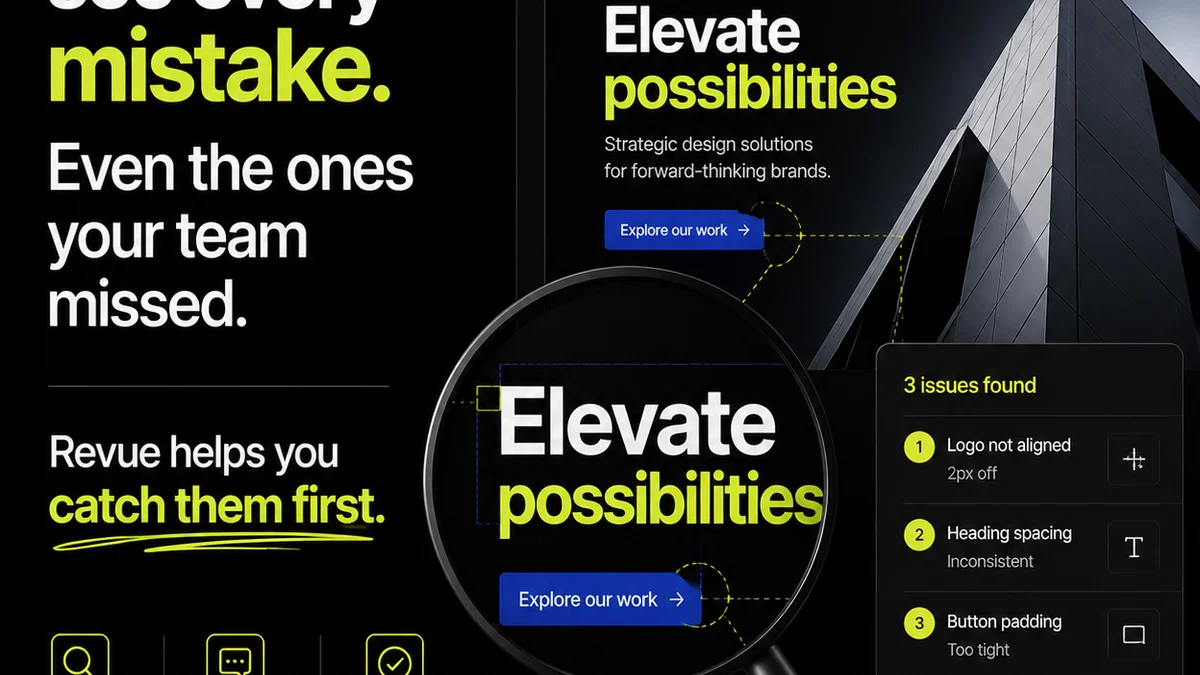
This is where tools like Revue become essential. You’re moving beyond the individual design file to manage the entire creative lifecycle.
Revue helps bridge the gap between Figma and your operational reality by:
- Centralizing Client Feedback: Instead of scattered emails or Slack messages about Figma designs, all client feedback can be logged against specific versions and tasks within Revue. This means everyone sees the same feedback, in context.
- Managing Revisions and Approvals: Track which version of a Figma design is currently out for review, who has approved it, and what revisions are pending. This visibility prevents confusion and ensures accountability.
- Running Quality Checks: Integrate your Figma workflow into your QA process. Ensure designs meet requirements before they are handed off to development or deployed. Revue can act as the central checklist and sign-off point.
It’s about making Figma’s output tangible and manageable within the broader project context.
It’s about operationalizing creativity.
6. Training and Onboarding: Building Figma Fluency
A powerful tool is only as good as the people using it.
Investing in training isn’t optional; it’s foundational.
This goes beyond basic tool proficiency.
Cultivating Figma Mastery
- Standardized Training: Ensure all designers and relevant team members receive consistent training on your agency’s Figma best practices.
- Internal Knowledge Sharing: Encourage experienced users to mentor newer ones. Host internal workshops on advanced techniques.
- Documentation: Maintain a living document of your agency’s Figma guidelines, component library usage, and workflow processes.
- Regular Audits: Periodically review Figma files to ensure adherence to standards and identify areas for improvement.
Your team’s fluency directly impacts project timelines and output quality.
Final Thought
Figma is more than a design application; it’s a collaborative ecosystem. The agencies that thrive aren’t just designing *in* Figma, they’re designing their *workflow* around it.
Are you treating Figma as a digital canvas, or as the central nervous system for your creative output?
Frequently asked questions
How can I ensure consistent Figma file structure across my agency?
Establish clear naming conventions for layers, components, and artboards. Organize pages logically (e.g., Style Guide, Components, Features). Use a master component library and publish updates regularly. Document these standards and onboard new team members effectively.
What's the best way to handle client feedback in Figma?
Utilize Figma's commenting feature by placing comments directly on elements. Grant controlled view-only access to clients for specific frames or pages. Encourage structured feedback and use comment statuses to track resolution. Centralize this feedback within a project management tool for better oversight.
How does Figma version history help agency workflows?
Figma's version history acts as an audit trail. Save versions frequently with descriptive names before major changes or client reviews. This allows you to easily revert to previous states if needed, preventing data loss and providing a clear record of project evolution.
Can Figma replace traditional project management tools?
No, Figma is primarily a design tool. While it excels at design collaboration and feedback, it doesn't replace the broader project management functions like task assignment, deadline tracking, resource allocation, or client communication across multiple disciplines. Tools like Revue complement Figma by integrating design deliverables into the overall project lifecycle.