Everyone wants a smoother Figma workflow. Designers dream of uninterrupted creative flow. Project managers crave predictable timelines. Clients expect polished deliverables, yesterday. You probably think the answer lies in more plugins, fancier templates, or maybe just better communication tools.
None of that is wrong. But it’s incomplete.
The hard truth is, optimizing your Figma workflow isn't about the tool. It’s about the process. It’s about the people. And it’s about the policies you put in place to ensure everyone, everywhere, is working from the same playbook.
This isn't about magic bullets. It's about building a robust, repeatable system that scales with your agency or team.
1. The Foundation: Project Setup & Organization
Chaos breeds in a messy file structure. Before a single pixel is placed, get this right.
File Naming Conventions
This feels obvious, but it’s the first line of defense against version control nightmares. Standardize your naming. Think [ProjectName]_[ClientName]_[Version]_[Date]_[Description].fig. This is non-negotiable.
Folder Structure
Keep it logical. A common structure:
01_Projects/02_Components/03_Assets/04_Prototypes/05_Archive/
Within `01_Projects`, use subfolders for each client or project. Keep it clean. Less digging, more designing.
Master Components Library
This is the heart of design system efficiency. A well-organized component library saves hours, ensures consistency, and drastically reduces errors.
- Atomic Design Principles: Build from atoms (buttons, inputs) to molecules (forms) to organisms (headers, footers).
- Clear Naming: Components and variants need descriptive names. `Button/Primary/Default` is better than `Btn1`.
- Documentation: Explain how and when to use components. A simple text layer or a dedicated `_Docs` page works wonders.
- Regular Audits: Prune unused components. Ensure everything is up-to-date.
Version Control Strategy
Figma’s version history is good, but it’s not a substitute for a clear strategy. Use it for significant milestones, not every minor tweak.
- Milestone Saves: Save versions for major deliverables: `v1.0 - Initial Concept`, `v2.0 - Client Review Draft`, `v3.0 - Final Delivery`.
- Descriptive Notes: Always add notes to your versions. What changed? Why?
2. Collaboration Best Practices
Figma is a collaborative tool. But collaboration without guardrails is just noise.
Clear Roles & Permissions
Who can edit? Who can comment? Who can view? Set these early. Avoid accidental over-writes or deleted artboards.
Feedback Integration
Client feedback is essential, but scattered feedback is a time sink. Centralize it. Use commenting features within Figma, but ensure there’s a process for consolidating and acting on feedback.
- Assign Comments: Use Figma’s assignee feature to delegate action items.
- Status Tracking: Mark comments as resolved. Keep the board clean.
- Consolidation Point: Designate someone (PM or Lead Designer) to synthesize feedback before presenting it for action.
Design Handoff
This is where many projects stumble. A smooth handoff requires clear communication and well-organized files.
- Specs Generation: Leverage Figma’s inspect panel. Ensure developers have access.
- Asset Export: Define export formats and resolutions upfront. Use Figma’s export settings effectively.
- Developer Handoff File: Consider a dedicated file or page for developers. This isolates specs and assets, reducing confusion.
- Prototyping for Clarity: Use prototypes to demonstrate interactions. It’s often clearer than written specs.
3. Maintaining Quality & Consistency
Design quality isn't accidental. It's the result of deliberate checks and balances.
Style Guides & Design Systems
This expands on the component library. A comprehensive style guide covers:
- Typography: Define font families, weights, sizes, and line heights for all use cases.
- Color Palettes: Primary, secondary, accent, semantic (success, error, warning) colors. Define hex codes and usage.
- Spacing & Layout Grids: Establish consistent spacing rules and grid systems.
- Iconography: Standardize icon style, size, and usage.
A living style guide, integrated into your Figma library, is your single source of truth.
Accessibility Checks
Designing for everyone is not optional. It's a fundamental requirement.
- Color Contrast: Use contrast checking tools within Figma or browser extensions. Aim for WCAG AA compliance at minimum.
- Focus States: Ensure interactive elements have clear focus indicators for keyboard navigation.
- Information Hierarchy: Use headings, spacing, and visual cues to create a clear reading order.
- Alt Text: Plan for image descriptions.
Don’t treat accessibility as an afterthought. Build it in from the start.
Cross-Browser/Device Testing (for Web)
What looks perfect on your 27-inch monitor might break on a mobile device or a different browser. Regular testing is crucial.
- Responsive Design: Build and test across different screen sizes using Figma’s responsive features and device frames.
- Browser Testing: Use tools or manual checks to verify appearance and functionality across major browsers (Chrome, Firefox, Safari, Edge).
4. Performance Optimization
A beautiful design is useless if it’s slow to load or clunky to interact with. Performance is part of the user experience.
File Optimization
Large Figma files can slow down everyone. Keep them lean:
- Clean Up Layers: Remove hidden or unused layers.
- Optimize Images: Use appropriate formats (e.g., JPG for photos, PNG for graphics with transparency) and compress them before importing.
- Component Instance Management: Avoid deeply nested instances where possible.
- Regular Audits: Periodically review file size and performance.
Prototype Performance
Complex prototypes with heavy animations or large assets can become sluggish. Optimize your interactions and assets.
Where Revue Fits In
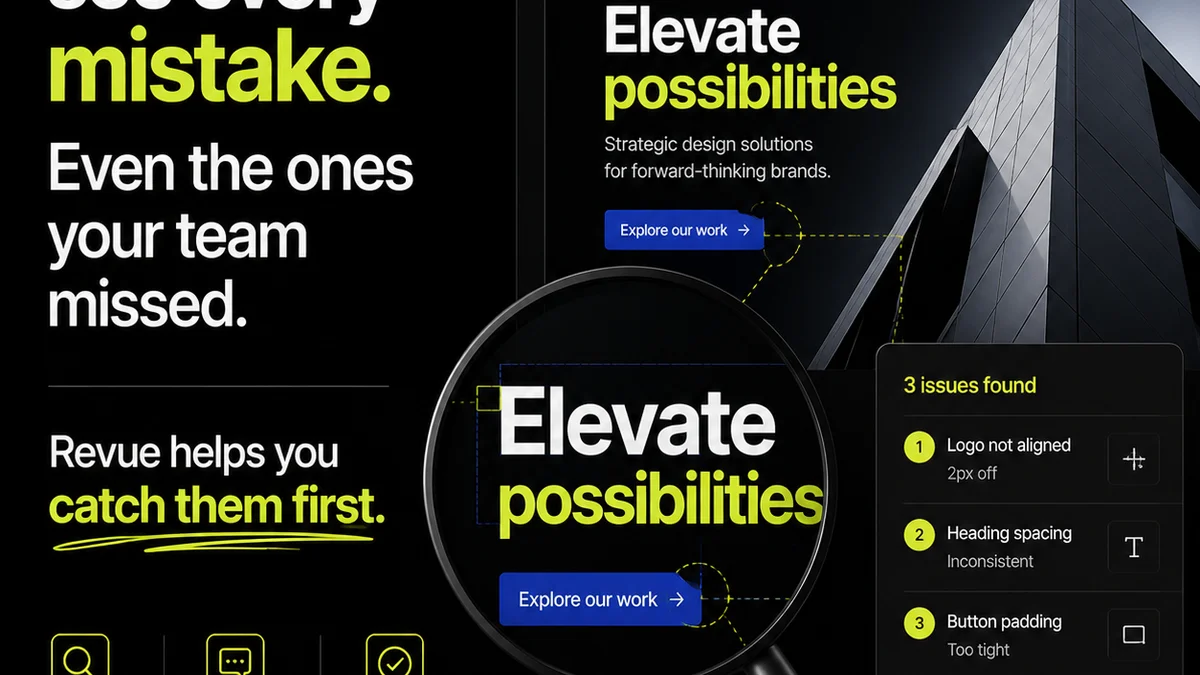
Managing a complex Figma workflow involves more than just the design tool itself. You need a central hub for client feedback, revision tracking, and quality assurance.
This is where Revue excels. It acts as that single source of truth for creative project communication.
- Centralized Feedback: Consolidate client comments and stakeholder input in one place, linked directly to your Figma designs. No more hunting through emails or Slack threads.
- Revision Visibility: Track the history of feedback and revisions. Understand the decision-making process and ensure nothing gets lost.
- Approval Workflow: Streamline the approval process. Clearly mark when designs are ready for review and when they’ve been approved, reducing ambiguity and speeding up delivery.
- Quality Check Integration: Use Revue to manage checklists and ensure all necessary steps, from accessibility checks to final asset delivery, are completed before sign-off.
By integrating Revue, you add a layer of structured management on top of your Figma process, ensuring clarity and accountability.
Final Thought
Your Figma workflow isn't just about making pretty pictures faster. It's about building a predictable, scalable, and profitable engine for creative delivery. It requires discipline, clear processes, and the right tools to support your team and delight your clients.
Are you optimizing your workflow for efficiency, or are you optimizing it for predictability and profitability?
Frequently asked questions
What are the key elements of a successful Figma workflow?
A successful Figma workflow hinges on strong foundations: standardized project setup and file organization, clear collaboration practices (roles, permissions, feedback consolidation), rigorous quality control (style guides, accessibility, testing), and performance optimization. Centralizing communication and approvals is also critical.
How can I improve client feedback in Figma?
Centralize feedback by using Figma's commenting tools but establish a process for consolidating and acting on comments. Assign comments to team members, track their status, and designate a point person to synthesize input before it's actioned. Tools like Revue can help manage this process externally.
What's the best way to organize Figma files for an agency?
Implement a consistent folder structure (e.g., Projects, Components, Assets, Archive) and strict file naming conventions. Maintain a centralized, well-documented component library. Use Figma's version history for major milestones with descriptive notes.
How do I ensure design consistency across projects?
Develop and maintain a comprehensive style guide and a living design system within Figma. This includes defining typography, color palettes, spacing, grids, and iconography. Ensure components are consistently named and variants are used effectively.
What are the essential accessibility considerations in Figma?
Prioritize color contrast (aiming for WCAG AA), ensure clear focus states for interactive elements, maintain a logical information hierarchy, and plan for alt text for images. Accessibility should be integrated from the initial design stages, not added later.