Everyone thinks Figma is just a better tool. Faster, more collaborative, all that. None of that is wrong. But it’s incomplete.
The real power of Figma isn’t the canvas. It’s the workflow it enables.
A smooth Figma workflow isn’t about knowing every shortcut. It’s about establishing clear processes for how your team moves work from concept to final delivery. Without that, even the best tool becomes just another digital Rolodex for scattered files.
Let’s get real. What’s the actual bottleneck in your agency or in-house team? Is it the software? Or is it how you use it?
1. Organizing Your Figma Files for Sanity
This is where most teams trip up. They treat Figma like a shared Dropbox folder. Files everywhere, no clear naming conventions, and everyone’s working off a version from three weeks ago.
Your file structure is your single source of truth. Treat it with respect.
Projects vs. Files vs. Pages
Understand the hierarchy. A Project is your client or major initiative. Inside that, you’ll have multiple Files. Within a File, you have Pages.
- Projects: Think of these as client folders. Keep everything for Client X in Project X.
- Files: These are your individual work documents. A single project might have files for:
- UI Design System
- Website Wireframes
- Mobile App Mockups
- Marketing Campaign Assets
- Pages: Within a file, pages are for organizing different states or sections. For a website file, you might have pages for:
- Homepage
- About Us
- Contact Page
- Prototypes
- Archive/Components
Keep pages focused. Don’t cram every single screen into one page. Break it down logically.
Naming Conventions: The Unsung Hero
This sounds boring. It’s not. It’s crucial.
A consistent naming convention prevents confusion and saves hours searching for the right file.
- File Naming:
ClientName_ProjectName_FileType_v[Number].fig
Example:AcmeCorp_WebsiteRedesign_UI_v03.fig - Page Naming: Use clear, descriptive names.
Homepage - Desktop,User Flow - Onboarding,Components - Buttons. - Component Naming: This is critical for design systems. Use a clear structure like
Category/Component/Variant.
Example:Button/Primary/Default,Card/Feature/ImageLeft.
Enforce this. Train your team. Make it non-negotiable.
The Master File Strategy
For larger projects, especially those with design systems, consider a master file approach.
One file acts as the central hub for your design system components. Other files then link to this master file.
This ensures consistency. Updates made in the master file propagate everywhere. It’s a game-changer for scalability.
2. Version Control: More Than Just Undo
Figma has built-in version history, which is great. But relying solely on that is like driving blindfolded.
You need a strategy for marking significant milestones.
Think of it like saving checkpoints in a video game. You don’t want to lose hours of progress.
Leveraging Figma Versions
Figma automatically saves versions as you work. You can also manually save versions with descriptive names.
- Auto-Saves: Great for quick recovery if something goes wrong.
- Manual Versions: Use these for key milestones.
v1.0 - Initial Client Draft,v2.1 - Approved Homepage Layout,v3.0 - Final Assets Exported.
This makes it easy to revert to a stable state or see how a design evolved.
Branching for Major Revisions (Advanced)
For complex projects, consider a branching strategy similar to software development.
Create a separate branch (a duplicate file or a dedicated page) for major experimental features or redesigns. Once approved, merge the changes back into your main file.
This keeps your main working file clean and stable, while allowing for exploration without risk.
3. Collaboration: Beyond the Red X
Figma’s real-time collaboration is its headline feature. But true collaboration goes deeper than just seeing cursors move.
It’s about structured communication and clear handoffs.
Comments: Use Them Wisely
Comments are powerful. But they can also become a black hole of unresolved feedback.
- Be Specific: Don’t just say “This looks bad.” Say “The CTA button on the homepage is too small and hard to click on mobile.”
- Assign Comments: Use the @mention feature to assign feedback to specific team members.
- Resolve Comments: Once feedback is addressed, resolve the comment. Don’t leave a mess of old discussions.
- Use Comments for Decisions: Document key design decisions or client approvals within the comments thread.
Comments are not a substitute for a proper brief or a formal sign-off.
Handoff: From Design to Development
Figma’s inspect panel is a godsend for developers. But it’s not magic.
Clear communication is still key.
- Organize Layers: Clean, well-named layers make the inspect panel usable. Messy layers = developer frustration.
- Component States: Clearly define different states for interactive components (hover, active, disabled).
- Prototyping: Link screens together to show user flows. This visualizes the user journey better than static mockups.
- Developer Handoff Meetings: Schedule short syncs to walk developers through complex interactions or new components.
Don’t assume developers will magically understand everything from the inspect panel alone.
4. Design Systems: The Engine of Efficiency
A design system isn’t just a Figma file with components. It’s a codified set of rules, principles, and reusable elements.
It’s the engine that drives consistency and speed across your entire output.
Building Your Foundation
Start simple. Focus on the most common elements first.
- Core Styles: Define your color palettes, typography scales, spacing rules, and shadow styles.
- Basic Components: Buttons, input fields, cards, modals.
- Atomic Design Principles: Think in terms of atoms (elements), molecules (combinations), and organisms (layouts).
Maintaining and Evolving
A design system isn’t static. It needs care.
- Clear Governance: Who decides when a new component is added? Who approves changes?
- Documentation: Explain how and when to use each component. Provide examples.
- Regular Audits: Check for inconsistencies or outdated elements.
A well-maintained design system reduces redundant work and ensures brand consistency at scale.
5. Where Revue Fits In
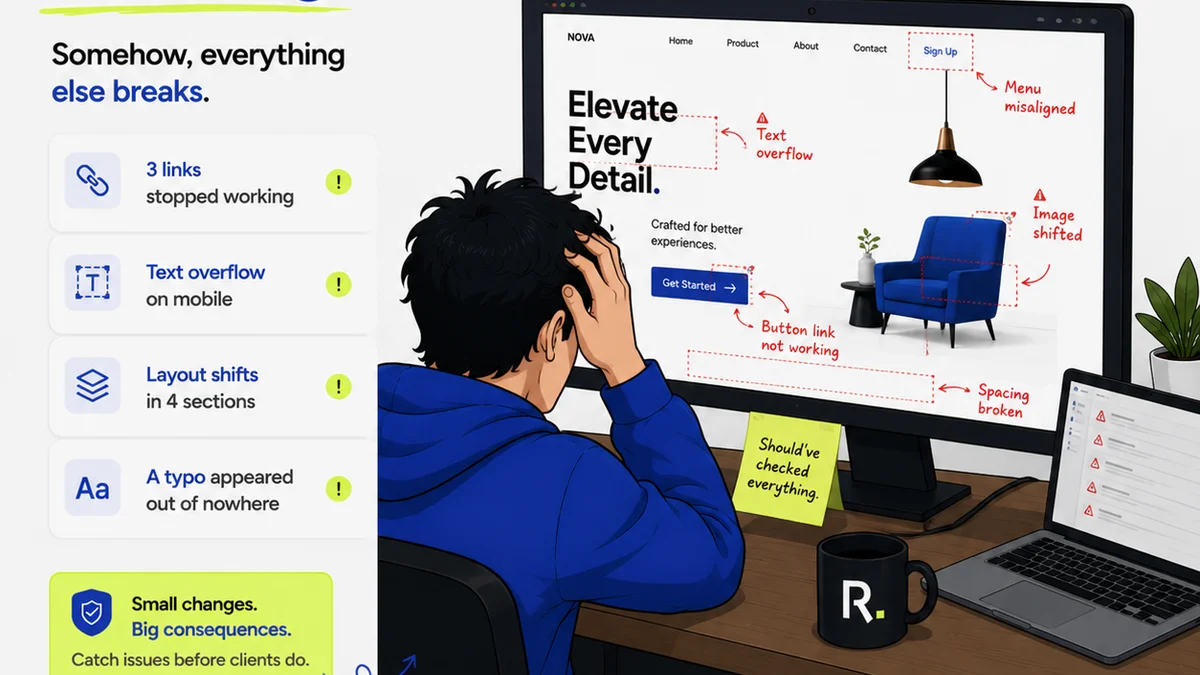
Figma is where the creation happens. But getting feedback, managing revisions, and ensuring quality happens *around* Figma.
This is where the operational friction often occurs.
Agencies and in-house teams often struggle with:
- Scattered Feedback: Emails, Slack messages, random annotation tools, Zoom call notes – none of it is in one place.
- Revision Chaos: Knowing which version is the latest, what feedback was addressed, and what’s still pending.
- Approval Bottlenecks: Getting clear, documented sign-offs from clients or stakeholders.
- Quality Control Gaps: Ensuring the final output matches the approved design before it goes live.
Revue centralizes client feedback directly on your creative assets. It provides a clear, visible audit trail of revisions and approvals.
This means less time chasing emails, fewer misunderstandings, and more confidence that you’re building the right thing.
Your Figma workflow is only as strong as your feedback and approval process. Revue bridges that gap.
Final Thought
Figma is an incredible tool. But it’s just that: a tool. The real magic happens when you build robust, repeatable processes around it.
Are you using Figma to its full potential, or are you just using it better?
Frequently asked questions
How should I organize my Figma files for a large project?
Use a clear hierarchy: Projects for clients, Files for specific deliverables (e.g., UI, wireframes), and Pages within files for organizing different sections or states. Implement strict naming conventions for files, pages, and components to ensure clarity and easy retrieval.
What's the best way to handle feedback in Figma?
Use Figma's comment feature strategically. Be specific with your feedback, assign comments to team members using @mentions, and resolve them once addressed. Document key decisions in comments, but remember they aren't a substitute for formal approvals.
How does version control work in Figma?
Figma automatically saves versions as you work. You can also manually save versions with descriptive names for key milestones (e.g., 'Client Approval Draft v1.2'). For major experimental changes, consider a branching strategy by duplicating files or using dedicated pages to keep your main working file stable.
Is a design system necessary for smaller teams?
While the full scope of a design system is for scaling, the principles are valuable for any team. Start by defining core styles (colors, typography) and essential components (buttons, inputs). This builds a foundation for consistency and efficiency, even on smaller projects.
How can a tool like Revue improve my Figma workflow?
Revue centralizes client feedback, revision tracking, and approvals, which are often the operational pain points surrounding Figma. It ensures all feedback is captured in one place with a clear audit trail, reducing miscommunication and streamlining the process from design to delivery.