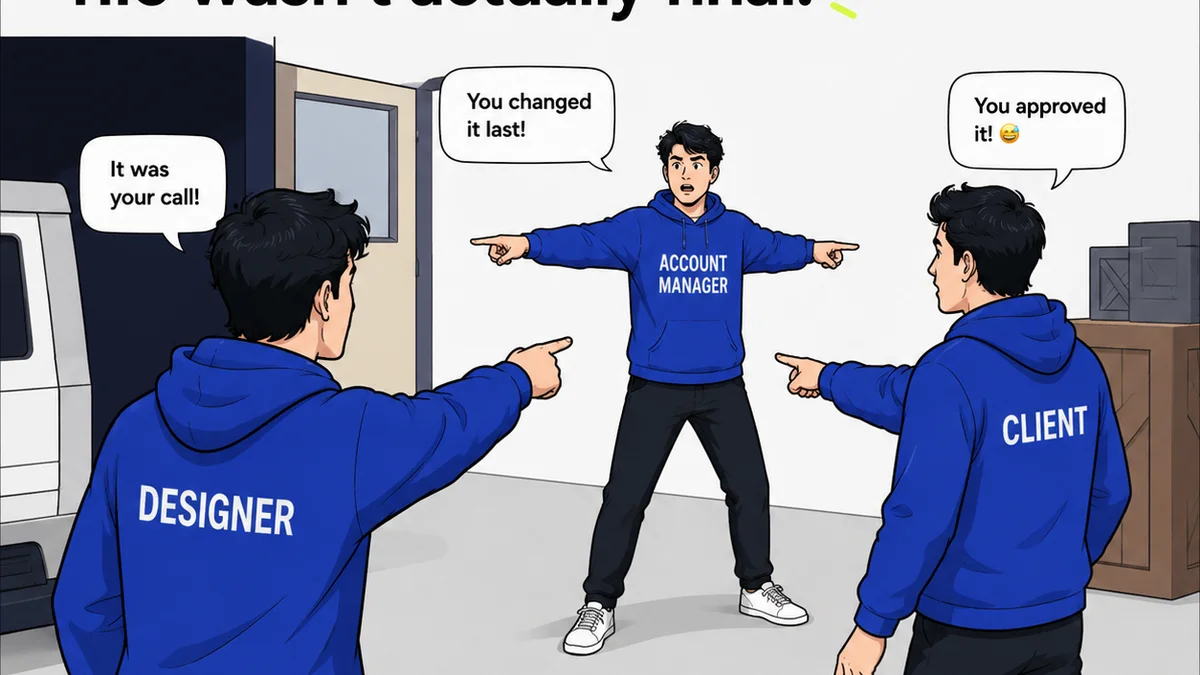
Everyone thinks good Figma workflows just *happen*. That talented designers, armed with the latest version, will naturally produce clean, organized, and easily understandable files. That client feedback will flow smoothly, revisions will be tracked, and approvals will be crystal clear.
None of that is wrong. But it’s incomplete.
The hard truth? Without codified Standard Operating Procedures (SOPs), your Figma workflow is a house built on sand. It’s prone to chaos, costly mistakes, and endless frustration. It’s also a direct drain on your agency’s profitability.
Building SOPs for Figma isn't about stifling creativity. It's about creating the guardrails that *enable* creativity to flourish efficiently. It’s about making sure everyone, from junior designer to senior stakeholder, knows what’s expected and how to achieve it.
1. The Myth of the Self-Organizing Design File
The assumption is that experienced designers inherently know how to organize a Figma file. That they’ll name layers logically, use components consistently, and maintain a clear structure. It’s a nice thought.
The reality? Different designers have different habits. What makes perfect sense to one person can be cryptic to another. This leads to:
- Wasted time deciphering messy files.
- Inconsistent design systems.
- Difficulty handing off files between team members.
- Client confusion during feedback rounds.
- Technical debt in your design assets.
Your agency needs a unified approach. Not a free-for-all.
Establishing a File Naming Convention
This is foundational. A clear, consistent naming convention for layers, frames, and components is non-negotiable. Without it, searching for elements becomes a nightmare.
Think about what you need to find quickly. Project names? Page types? States? Variants? Your convention should reflect this.
- Pages:
01_Onboarding,02_Dashboard,03_Settings - Frames:
[Component Name] - [State](e.g.,Button - Primary - Hover) - Layers:
[Element Type] - [Description](e.g.,Text - Heading Large,Icon - Arrow Right)
Make it simple, make it stick.
Structuring Your Files and Pages
How do you break down a large project? A single, massive Figma file is rarely the answer. Think about logical divisions.
Consider these common structures:
- By Feature/Section: Separate files for onboarding, dashboard, user profile, etc.
- By Platform: If you design for web and mobile, separate files might make sense initially.
- By Stage: A file for wireframes, another for high-fidelity mockups, and a third for prototypes.
Within files, organize pages logically. Use numbering for critical paths or common flows. Leave ample white space for clarity.
2. Componentization: More Than Just Reusability
Components are the heart of efficient Figma workflows. But simply creating a component doesn't guarantee anything. It needs to be done *correctly*.
This means adhering to a clear strategy for component structure, naming, and states.
The Power of Variants
Variants are your best friend for managing different states and styles of a component. Buttons, inputs, cards – they all have variations.
Define your variants upfront. What are the common states?
- States: Default, Hover, Pressed, Disabled, Active
- Sizes: Small, Medium, Large
- Types: Primary, Secondary, Tertiary
- Content: With Icon, Without Icon, With Label
Name your variants clearly. This makes selecting the right one intuitive.
Auto Layout: The Unsung Hero
If you’re not using Auto Layout religiously, you’re missing out on massive efficiency gains. It’s the key to responsive and adaptable designs.
Train your team to use Auto Layout for:
- Buttons and text fields.
- Lists and cards.
- Forms and complex layouts.
- Ensuring consistent spacing and alignment.
An Auto Layout structure is self-adjusting. It saves hours of manual resizing and repositioning.
Master Component Management
Where do your master components live? A dedicated “Design System” file is best practice. This ensures a single source of truth.
Establish clear rules for updating master components:
- Who has permission to edit them?
- How are changes communicated?
- What’s the process for deprecating old components?
Avoid the temptation to create local copies of components. It’s a recipe for inconsistency.
3. Collaboration and Handoff: Bridging the Gap
Figma is a collaborative tool, but collaboration requires structure. Especially when it comes to sharing designs with developers, clients, and other stakeholders.
Poor handoff is a major source of project delays and misinterpretations.
Developer Handoff Standards
Developers need more than just a pretty picture. They need accessible specs and assets.
Your SOPs should dictate:
- How to use Figma’s inspect panel effectively.
- When to export assets and in what formats (SVG, PNG, etc.).
- How to communicate complex interactions or animations.
- Protocols for answering developer questions.
Consider using plugins that streamline the handoff process, but ensure your team knows *how* and *when* to use them.
Client Feedback Integration
Client feedback is often the most chaotic part of the process. Without a system, it becomes a tangled mess of emails, Slack messages, and verbal requests.
Your SOPs should define:
- The preferred method for clients to leave feedback (e.g., Figma comments, a dedicated review tool).
- How feedback is consolidated and categorized.
- The process for prioritizing and actioning feedback.
- Who is responsible for communicating feedback to the design team.
This prevents
Frequently asked questions
What is a Figma workflow SOP?
A Figma workflow SOP is a documented set of procedures and guidelines that standardize how your team uses Figma for design projects. It covers file organization, naming conventions, component usage, collaboration, and handoff to ensure consistency and efficiency.
Why are SOPs important for Figma?
SOPs are crucial for Figma because they prevent inconsistencies, reduce errors, speed up workflows, facilitate easier collaboration and handoffs, and ultimately save time and money. They ensure that all team members work from a common set of best practices.
How do I start building Figma SOPs?
Start by identifying pain points in your current Figma process. Then, document clear rules for file structure, naming conventions, component creation and management, and collaboration. Get team buy-in and ensure the SOPs are accessible and regularly reviewed.
Should clients be involved in Figma SOPs?
While clients don't need to adhere to your internal Figma file structure SOPs, they should be guided on how to provide feedback effectively. Your SOPs should define the client feedback process, specifying preferred channels and how their input will be managed.