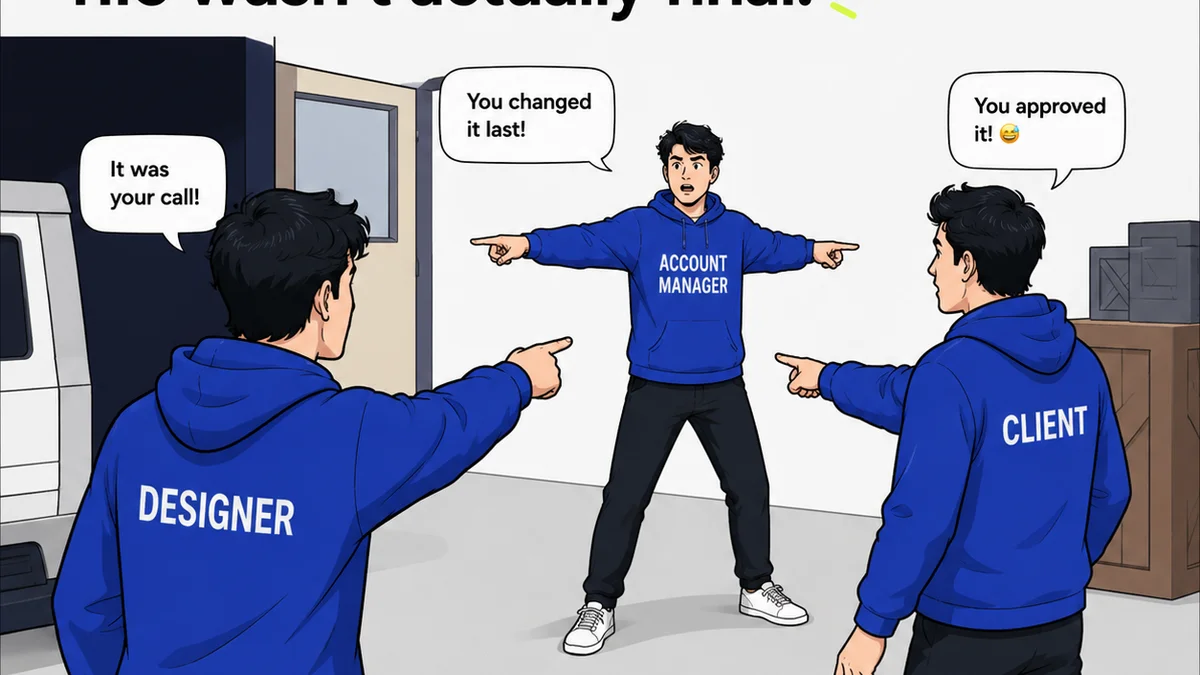
Everyone talks about Figma plugins. They’re cool. They promise to automate tasks, streamline handoffs, and generally make your design life easier. But are more plugins always better? Not necessarily.
The real challenge isn't finding the *best* Figma tool. It's building a *system* that connects your design process from ideation to development.
Let’s break down how to choose tools that genuinely enhance your Figma workflow, not just add complexity.
1. Understand Your Core Workflow Gaps
Before you download another plugin, map out your current process. Where are the real bottlenecks? What tasks are eating up the most time or causing the most friction?
Common assumptions about workflow problems are often wrong. People think they need a better prototyping tool when the real issue is unclear feedback. They think they need a more advanced component library when the problem is inconsistent asset management.
Ask yourself:
- Where does feedback get lost?
- How much time is spent chasing down revisions?
- Are developers consistently getting the right assets?
- How do you track design changes and approvals?
- Is there a clear process for design QA?
Answering these questions honestly reveals where you *actually* need help.
2. Prioritize Integration Over Isolation
A standalone tool, no matter how powerful, is often less valuable than one that plays well with others. Your Figma workflow is a chain, and a weak link anywhere can break the whole thing.
Think about how new tools will connect to your existing ecosystem:
- Figma itself (obviously)
- Communication tools (Slack, Teams)
- Project management software (Asana, Jira, Trello)
- Asset management systems (DAMs, cloud storage)
- Development environments
Tools that offer native integrations or robust APIs are gold. They reduce manual data transfer and context switching, which are major productivity killers.
Example: Handoff Tools
A dedicated handoff tool seems great. It can export specs, assets, and code snippets. But if you have to manually copy-paste information from Figma into the handoff tool, you’ve added an extra step. A tool that integrates directly with Figma, pulling information automatically, is far more efficient.
Example: Prototyping
Advanced prototyping is tempting. But if your team struggles with basic usability testing due to messy prototypes or unclear flows, a simpler, more integrated prototyping feature might be better. Or, the problem might be your feedback process, not the prototype itself.
3. Evaluate Tools Based on Workflow Stages
Different tools serve different purposes at various points in the design lifecycle. Consider what you need for each stage:
Ideation & Research
This stage is about exploration. Tools here might help with:
- Mind mapping
- User flow diagramming
- Competitor analysis
- Mood boarding
While some of these can happen *in* Figma, dedicated tools might offer better collaboration or specialized features. The key is easy import/export back into Figma.
Design & Prototyping
This is Figma’s core strength. Plugins here often focus on:
- Component management
- Design system consistency
- Accessibility checks
- Content generation
- Advanced prototyping features
Choose plugins that augment Figma's capabilities without disrupting the core design experience. For instance, accessibility checkers that provide real-time feedback within the canvas are invaluable.
Feedback & Collaboration
This is where many workflows break down. Are you relying solely on comments within Figma? Or are you using email, Slack, or spreadsheets?
Effective feedback requires structure. You need tools that:
- Centralize comments and annotations
- Allow clear versioning and revision tracking
- Facilitate stakeholder approvals
- Provide context for feedback
This is the area where many agencies find the most significant ROI by improving clarity and reducing back-and-forth.
Handoff & Development
Getting designs to developers accurately is critical. Tools should help with:
- Asset export
- Code specification
- Layout inspection
- Developer collaboration
Look for tools that minimize ambiguity and ensure developers have everything they need, directly from the source files.
Quality Assurance (QA)
Ensuring the final product matches the design intent is crucial. QA tools help:
- Compare design mockups to the live build
- Identify visual discrepancies
- Track bugs and issues
- Verify responsiveness across devices
Integration with your design tools and bug tracking systems is key here.
4. The
Frequently asked questions
What are the most important factors when choosing Figma workflow tools?
Prioritize integration with your existing stack, ease of use for the entire team, and the ability to solve specific workflow bottlenecks. Don't get distracted by features you don't need.
How do I know if I need a new Figma plugin or a standalone tool?
If the functionality is core to your design process and available as a robust plugin within Figma, start there. For broader process management (like feedback or project tracking), a standalone tool that integrates with Figma is often better.
Can too many Figma plugins slow down my workflow?
Yes. Each plugin adds overhead. Too many can slow down Figma's performance, increase complexity, and create conflicts. Choose plugins strategically based on genuine needs.
How can tools improve feedback on Figma designs?
Tools that centralize comments, enable version comparison, and facilitate clear approval steps are crucial. Moving feedback out of scattered emails or Slack messages into a dedicated system dramatically improves clarity and reduces errors.