Everyone talks about Figma plugins. New integrations. AI-powered magic. It’s easy to assume that future-proofing your design workflow means staying on top of the latest tech trends. That’s the shiny object syndrome talking.
None of that is wrong. But it’s incomplete.
The real future-proofing isn't about the tools; it's about the process. It’s about building a robust, adaptable system that can absorb new tech without breaking.
1. Define Your Core Design Principles
Before you even think about version control or component libraries, you need a bedrock. What are your non-negotiables? What principles guide your design decisions and team collaboration?
This isn't about aesthetics. It's about how you work.
Clarity Over Complexity
Your workflow should be easy for anyone to understand. New hires, clients, even your future self should be able to navigate it.
Consistency is King
Standardized naming conventions, file structures, and component usage are crucial. This reduces ambiguity and speeds up development handoff.
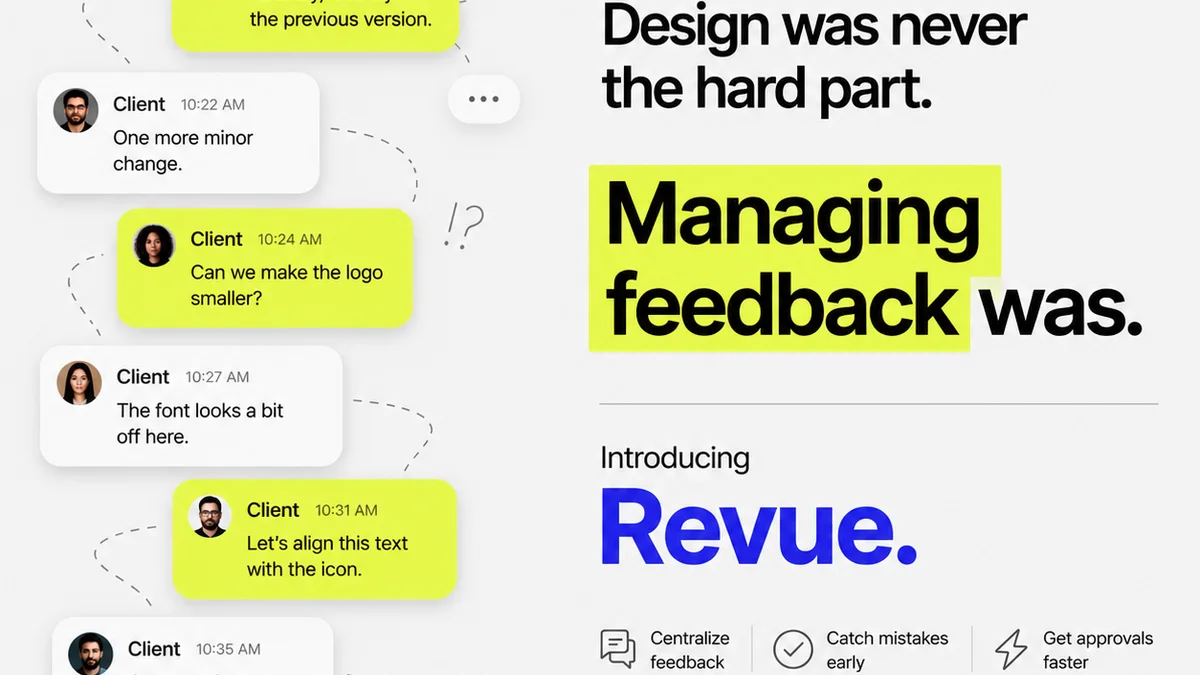
Feedback Loops That Work
How do you gather, process, and act on feedback? A defined process prevents endless revision cycles and miscommunication.
Scalability by Design
Your workflow needs to grow with your team and your projects. What works for a solo designer won't work for a team of ten.
Without these core principles, you’re just rearranging deck chairs on the Titanic. Every new plugin or feature becomes a temporary fix that doesn’t address the underlying issues.
2. Master Figma's Built-In Power
Figma is more than just a drawing tool. It’s a robust platform with features designed for collaboration and efficiency. Over-reliance on external tools can sometimes obscure the power you already have.
Components and Variants: Your Building Blocks
This is foundational. Master components and variants. Use them religiously. They are the bedrock of a scalable design system and a consistent UI.
Think of them as your reusable LEGO bricks.
Styles for Everything
Text styles, color styles, effect styles, layout grids. Use them. Enforce them. They ensure visual harmony and make global changes a breeze. No more find-and-replace nightmares.
Auto Layout: The Responsive Engine
If you’re not using Auto Layout, you’re doing yourself a disservice. It makes designs adaptable, responsive, and much easier to manage. It’s the secret sauce for flexible interfaces.
Prototyping for Clarity
Figma’s prototyping tools are powerful. Use them to communicate user flows and interactions clearly. This reduces ambiguity for developers and stakeholders.
Don't just design screens; design experiences.
Version History: Your Safety Net
Figma automatically saves version history. Learn to use it effectively. It's your undo button for major mistakes and a record of your design evolution.
This built-in functionality is often overlooked in the rush for external solutions.
3. Structure Your Files and Projects Logically
A messy file structure is a productivity killer. It breeds confusion and wastes valuable time searching for assets or understanding project history.
The Single Source of Truth
Your design files should be the single source of truth for UI elements. Aim for clarity and organization within each file.
Establish a Clear Naming Convention
This is non-negotiable. Develop a consistent naming convention for layers, frames, components, pages, and files. It sounds tedious, but it pays dividends.
Examples:
- Buttons: `Button/Primary/Default`, `Button/Secondary/Hover`
- Icons: `Icon/24px/Arrow-Right`
- Pages: `01_Onboarding`, `02_Dashboard`, `03_Settings`
Organize Your Pages
Within a Figma file, use pages to separate distinct sections. Think: `_Covers`, `_Prototypes`, `_Components`, `_Drafts`, `01_UserFlowA`, `02_UserFlowB`.
Branching and Merging (The Git Way, Simplified)
While Figma doesn't have native Git branching, you can adopt similar principles. Use separate files or pages for experimental features. Merge them back into the main file when ready. This keeps your main file clean and stable.
This prevents
Frequently asked questions
What is the most important aspect of future-proofing a Figma workflow?
The most critical aspect is building a robust and adaptable process based on core design principles, rather than solely relying on the latest tools or plugins. A strong process can integrate new technologies without disruption.
How do Figma's built-in features contribute to a future-proof workflow?
Figma's built-in components, variants, styles, Auto Layout, and version history provide foundational elements for consistency, scalability, and efficiency. Mastering these reduces reliance on external tools and ensures a stable workflow.
Why is file structure and naming convention so important for a Figma workflow?
A logical file structure and consistent naming convention create a 'single source of truth,' reduce ambiguity, speed up collaboration and handoffs, and make it easier for team members (current and future) to navigate and understand design files.
How can agencies manage feedback effectively within Figma?
While Figma has commenting features, a robust workflow involves a centralized system for tracking, prioritizing, and acting on feedback. Tools like Revue can help manage this feedback loop, ensuring clarity and accountability across revisions.