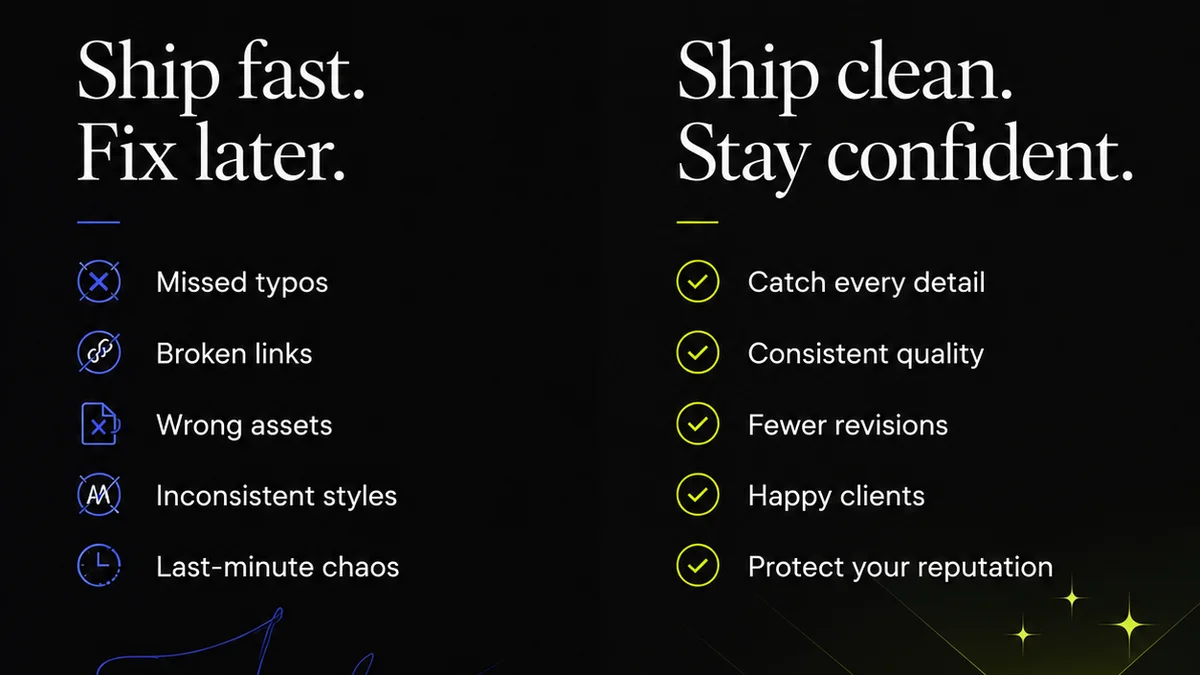
Everyone thinks more designers means faster output. It’s the default answer to capacity problems: “We’re swamped, let’s hire another Figma jockey.”
None of that is wrong. But it’s incomplete.
The hard truth is that throwing more people at a broken process just breaks it faster. You end up with more communication overhead, more duplicated effort, and more confusion. Your Figma files get messier, your clients get more frustrated, and your team burns out.
The real bottleneck isn't headcount. It's your workflow.
Let’s talk about how to fix that, without adding a single person to payroll.
1. Audit Your Current Figma Process
Before you can optimize, you need to know what you’re optimizing. Most teams skip this, jumping straight to tools or new hires. That’s a mistake.
A thorough audit reveals the hidden friction points. Where does work get stuck? Who’s waiting on whom? What are the most common revisions, and why are they happening?
Identify the Symptoms
Your team is probably already showing signs of workflow distress. Look for these:
- Endless rounds of minor tweaks that never seem to end.
- Designers spending more time managing files than designing.
- Clients complaining about the same feedback over and over.
- Key stakeholders missing deadlines for feedback.
- Difficulty onboarding new designers into existing projects.
- A general sense of chaos around file versions and handoffs.
Map the Flow
Grab a whiteboard or a shared doc. Map out your entire design process from brief to final delivery. Be brutally honest about each step:
- How is a project initiated?
- Who is responsible for what at each stage?
- Where does feedback happen? Who gives it?
- How are revisions tracked?
- How are final assets handed off?
- What tools are used at each stage?
This exercise is eye-opening. You’ll see bottlenecks you never knew existed.
2. Streamline Your File Management
Figma is powerful, but it can become a tangled mess if not managed. Poor file structure is a silent killer of productivity.
Think of your Figma files like a library. If books are just thrown on the floor, finding anything is impossible. A well-organized library allows quick retrieval and efficient use.
Establish Clear Naming Conventions
This is non-negotiable. Every file, page, and component needs a consistent, predictable name. Don’t rely on memory or intuition.
A good convention might look like:
[Client Name]_[Project Name]_[Version]_[Status]- Example:
AcmeCorp_WebsiteRedesign_v3_Draft
Apply this to pages within files too: 01_Wireframes, 02_Mockups_Homepage, 03_Components.
Master Version Control
Figma has built-in version history, but many teams don’t use it effectively. Relying on duplicating files (`Project_v2_final_final.fig`) is a recipe for disaster.
- Use Figma’s branching feature for significant design explorations.
- Save versions at key milestones (e.g., after client approval, before major rework).
- Document what each version contains in the description.
Leverage Libraries and Components
This is Figma’s superpower. If your team isn’t using shared libraries for design systems, you’re missing out on massive efficiency gains.
- Centralize reusable elements (buttons, forms, headers).
- Ensure consistency across all designs.
- Update a component once, and it propagates everywhere.
- This drastically reduces repetitive work and ensures brand consistency.
3. Optimize Your Feedback Loop
Client feedback is the lifeblood of creative work, but a messy feedback process is a death sentence for deadlines and morale.
The assumption is that feedback is just… feedback. The reality is it’s a critical data transfer point. If that data is corrupted or lost, the whole project suffers.
Centralize All Feedback
Stop chasing comments across emails, Slack messages, Google Docs, and verbal conversations. This is chaos.
All feedback related to a specific design should live in one place. This provides a single source of truth and eliminates ambiguity.
Define Feedback Roles and Cadence
Who is authorized to give feedback? When should they give it? Setting clear expectations prevents scope creep and delays.
- Designate primary stakeholders for approval.
- Establish clear deadlines for feedback rounds.
- Communicate the process clearly to clients upfront.
Structure Feedback for Actionability
Vague feedback is useless. “Make it pop more” doesn’t tell your designer what to do.
- Train clients (gently) on how to provide constructive, specific feedback.
- Use annotation tools that allow comments directly on the design.
- Categorize feedback: bugs, suggestions, strategic questions.
The goal is clarity. Designers should know exactly what needs to be addressed.
4. Automate Handoffs and Quality Checks
The gap between design and development is a notorious productivity drain. Manual handoffs are prone to errors and misunderstandings.
Think of this as the final mile. If you stumble here, all the previous effort is wasted. You need a reliable system, not just a prayer.
Leverage Figma’s Dev Mode
Figma’s built-in developer handoff tools are powerful. Devs can inspect elements, grab specs, and export assets directly.
- Ensure designers are using Auto Layout effectively so spacing and sizing are clear.
- Tag layers and elements logically for easy identification.
Integrate with Handoff Tools
For more complex projects or agency-dev team dynamics, dedicated handoff tools can be invaluable. They bridge the gap more robustly than native features alone.
These tools often provide:
- Better asset export options.
- Integrated commenting and issue tracking.
- Clearer visualization of design changes.
Implement Design QA Processes
Don’t wait for QA to catch design inconsistencies. Build quality checks into your design process.
- Use design system components rigorously.
- Conduct internal design reviews before client presentation.
- Automate checks for accessibility (color contrast, focus states).
Catching issues early saves immense time and prevents costly rework.
Where Revue Fits In
Managing feedback, revisions, and approvals across multiple projects and clients can quickly become unwieldy. This is where a centralized platform becomes essential.
Revue helps streamline these critical post-design stages. Instead of juggling disparate tools and communication channels, you get a single source of truth for client feedback.
- Centralized Feedback: All comments, annotations, and discussions live directly on the creative asset, eliminating confusion and lost messages.
- Revision Visibility: Track every iteration, see what changed, and understand the history of approvals. This clarity prevents endless “what if we tried this?” loops.
- Quality Checks: Ensure all necessary stakeholders have reviewed and approved work before it moves to the next stage, reducing last-minute surprises.
By consolidating these workflows, you reduce the administrative burden on your design team, allowing them to focus on what they do best: creating great work.
Final Thought
Hiring more people is the easy answer. Optimizing your workflow is the smart answer.
It requires introspection, discipline, and a willingness to challenge how you’ve always done things. But the payoff – faster delivery, happier clients, and a less stressed team – is worth every bit of effort.
Are you optimizing your workflow, or just adding more hands to the wheel?
Frequently asked questions
How can I make my Figma file organization better?
Establish strict naming conventions for files, pages, and layers. Use Figma libraries for reusable components and master version control by saving versions at key milestones rather than duplicating files.
What's the best way to handle client feedback in Figma?
Centralize all feedback in one place, ideally on the design itself using annotation tools. Define clear roles for who can give feedback and set specific deadlines. Train clients to provide actionable, specific comments.
How do I improve the handoff from Figma to development?
Leverage Figma's Dev Mode for specs and assets. Consider integrating with dedicated handoff tools for enhanced features. Ensure designers use Auto Layout and logical layer naming for clarity.
Can I really improve my team's output without hiring?
Yes. By auditing and optimizing your existing processes—file management, feedback loops, and handoffs—you can eliminate significant bottlenecks and increase efficiency without adding headcount.