Everyone knows you need to check a PDF before sending it to a client. Proofread for typos, make sure the colors look right, check that the links work. It’s basic stuff. None of that is wrong. But it’s incomplete.
The hard truth? A superficial PDF Quality Assurance (QA) process is a ticking time bomb for client relationships and your agency’s reputation. You’re not just checking for errors; you’re validating the entire creative and strategic effort. It’s the final gate before your work is judged, and it needs to be robust.
1. The Assumption: PDFs Are Static
The common assumption is that once a design is finalized and exported to PDF, it’s a fixed artifact. It’s a snapshot. This thinking leads to a shallow QA approach, focusing only on surface-level presentation.
The reality is that PDFs can contain dynamic elements, interactive features, and a surprising amount of hidden complexity. A simple visual check misses crucial functional and technical aspects that can derail a project or frustrate a client.
Interactive Elements
Are there form fields? Buttons? Any embedded media? These need to be tested for functionality, not just appearance. A non-working submit button is a project stopper.
Hyperlinks
Every link needs verification. Not just that it *goes* somewhere, but that it goes to the *correct* destination. Internal links, external links, email links – they all need a click-through test.
Embedded Fonts
Missing or improperly embedded fonts can cause text reflow, rendering issues, or even prevent the PDF from opening correctly on certain systems. This is a common, yet often overlooked, PDF QA pitfall.
Accessibility Features
For many clients, especially in regulated industries or those aiming for broad reach, PDF accessibility is non-negotiable. This means proper tagging, reading order, alt text for images, and sufficient color contrast. A PDF that looks good but isn't usable by someone with a screen reader is a failure.
2. The Deeper Truth: PDF QA is About Risk Mitigation
Your PDF QA process isn't just about catching typos. It's about mitigating risks across multiple fronts: brand consistency, technical performance, client satisfaction, and your team’s efficiency.
A robust PDF QA checklist acts as your last line of defense against costly mistakes. It prevents embarrassing errors from reaching the client, ensures the deliverable functions as intended, and ultimately protects the integrity of your agency’s work.
Brand Consistency Check
This goes beyond just logos. Are brand colors accurately represented? Is the typography consistent with brand guidelines? Are the right visual assets being used? A PDF is often a client's primary touchpoint with a campaign or collateral.
Technical Performance
Is the file size reasonable? Will it print correctly? Are there any rendering issues that might appear on different devices or viewers? A massive, slow-loading PDF or one that prints with jagged edges is unacceptable.
Functional Integrity
Does the PDF behave as expected? If it’s an interactive form, can users fill it out and submit it? If it’s a presentation, do the navigation elements work? If it’s a print layout, are all bleed and trim marks correctly set?
Client-Specific Requirements
Every client has unique needs. Some require specific file naming conventions, others need certain metadata included, and some have very precise printing specifications. Your QA must account for these bespoke demands.
3. Building a Comprehensive PDF QA Checklist
A truly effective PDF QA checklist moves beyond the obvious. It’s structured, systematic, and covers every potential failure point. Think of it as a surgical pre-flight check.
Pre-Export Checks (Source File)
- Document Setup: Correct trim size, bleed, color mode (CMYK for print, RGB for web if applicable), resolution (300 DPI for print).
- Typography: All fonts outlined or embedded correctly. No missing characters or incorrect font substitutions. Consistent leading, kerning, and tracking.
- Imagery: High enough resolution, correctly color-separated, no misplaced or corrupted image files.
- Color: Swatches defined correctly, spot colors handled properly, overprint settings checked.
- Layers: Unnecessary layers removed, layer names are clean.
- Guides & Hidden Objects: All guides removed, no stray points or hidden objects outside the artboard.
Export Settings Verification
- PDF Preset: Using the correct preset (e.g., [High Quality Print], [Press Quality]).
- Marks & Bleeds: Crop marks, bleed marks, registration marks, color bars, page information included as required. Bleed settings match document setup.
- Output: Correct color conversion profile applied.
- Advanced: Transparency flattener settings, font subsetting enabled.
Post-Export (The PDF Itself)
This is where most teams stop, but it’s just the beginning.
Visual & Typographical
- Page Count: Correct number of pages.
- Page Order: Pages are in the correct sequence.
- Content Accuracy: Text matches final approved copy. All names, dates, figures are correct.
- Layout Integrity: Elements aligned correctly, no text reflow, images not distorted or pixelated.
- Color Accuracy: Colors appear as intended, especially critical brand colors.
- Consistency: Typography, spacing, and graphical elements are consistent across all pages.
Functional & Interactive
- Hyperlinks: All links present, correct destinations, clickable. Test internal, external, and email links.
- Form Fields: All fields present, correctly labeled, functional (can input text, select options), and submit/reset buttons work.
- Buttons & Navigation: Interactive elements function as designed.
- Bookmarks: Present and correctly named/linked.
- Embedded Media: If any, test playback.
Technical & Output
- File Size: Within acceptable limits for intended use (email, web download, print submission).
- Metadata: Document title, author, keywords are populated correctly if required.
- Security: Permissions (printing, copying) are set as requested.
- Font Embedding: Verify fonts are embedded using Adobe Acrobat's 'Print Production' > 'Output Preview' or 'Preflight' tools.
- Printability: Open in multiple PDF viewers (Adobe Acrobat Reader, others if specified) and check for rendering anomalies. If for print, simulate output if possible.
Accessibility (If Required)
- Reading Order: Use Acrobat's 'Accessibility Checker' to verify logical reading order.
- Tags: Check for proper tagging structure.
- Alt Text: Images have descriptive alt text.
- Color Contrast: Sufficient contrast ratios (can be checked with plugins or online tools).
- Form Labels: Form fields have clear, associated labels.
4. The Human Element: Who Owns PDF QA?
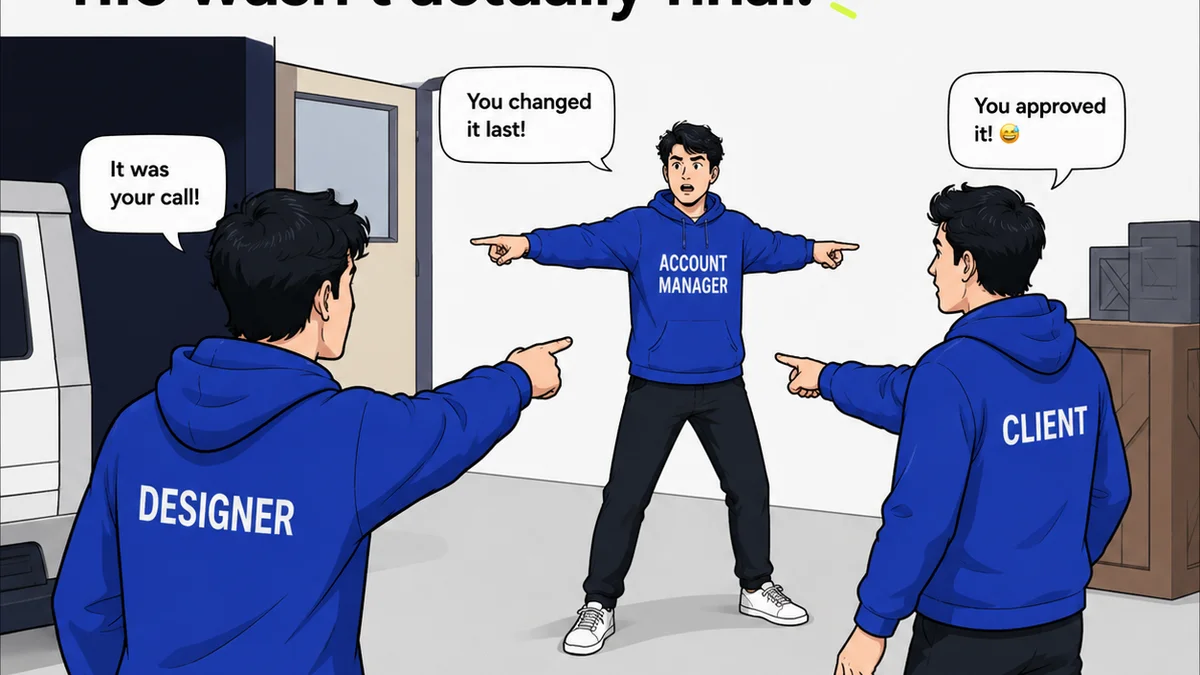
Assigning responsibility for PDF QA is critical. Is it the designer who created the file? The account manager who liaises with the client? A dedicated QA specialist? Without clear ownership, tasks fall through the cracks.
The best approach often involves multiple eyes. The designer can perform a self-check, focusing on the technical build. The project manager or account handler can review for content accuracy and client-specific requirements. A fresh set of eyes, ideally someone not deeply involved in the creation, can catch visual or logical errors.
This multi-stage review process adds layers of checks and balances, significantly reducing the chance of errors slipping through.
5. Where Revue Fits In
Managing the entire feedback, revision, and approval cycle for creative work is where tools like Revue shine. While Revue isn't a PDF creation tool, it streamlines the process that *leads* to the final PDF deliverable.
Imagine this: Client feedback comes in through email, Slack, and random calls. Revisions are made, but tracking which version is the latest becomes a nightmare. Approvals are buried in email chains.
Revue centralizes all client communication and feedback directly on the creative assets themselves. You can see every comment, every revision history, and every approval status in one place.
- Centralized Feedback: All client comments live on the asset, eliminating scattered communication.
- Revision Clarity: Track changes and understand the evolution of the design leading up to the final export.
- Streamlined Approvals: Get clear sign-offs, reducing ambiguity and speeding up the go-live process.
By having a crystal-clear audit trail of feedback and approvals *before* the PDF is even generated, your team is already operating with a higher degree of accuracy and accountability. This makes the final PDF QA step more of a confirmation than a desperate error hunt.
6. Final Thought
Is your PDF QA process a box-ticking exercise, or is it a strategic safeguard for your agency's quality and reputation? The difference lies in moving beyond the surface and understanding the full scope of what a 'final' PDF entails.
What’s one overlooked detail in your current PDF QA process that you can start checking today?
Frequently asked questions
What are the most common mistakes in PDF QA?
Common mistakes include overlooking broken hyperlinks, incorrect font embedding or substitution, inaccurate color representation (especially for brand colors), unaddressed accessibility requirements, and ensuring interactive elements like forms function correctly. File size and print-readiness are also frequent oversights.
How can I ensure accessibility in PDFs?
Accessibility in PDFs involves proper tagging for screen readers, logical reading order, descriptive alt text for images, sufficient color contrast, and correctly labeled form fields. Tools like Adobe Acrobat's 'Accessibility Checker' are essential for verification.
Who should be responsible for PDF QA in an agency?
Ideally, PDF QA should be a multi-stage process involving multiple people. The designer can perform a technical self-check, the project manager can verify content and client specs, and a fresh pair of eyes can catch visual errors. Clear ownership is key to prevent tasks from being missed.
How does a tool like Revue help with PDF QA?
Revue helps by centralizing all client feedback, revisions, and approvals *before* the PDF is finalized. This creates a clear audit trail, reduces ambiguity, and ensures everyone is working from the latest approved version, making the final PDF QA step more about confirmation than error discovery.