Everyone assumes a PDF is just a PDF. Send it over, get it approved, done. It’s a final file format, right? That’s the common wisdom. But it’s dangerously incomplete.
The hard truth? A poorly executed PDF can unravel an entire project. It can lead to print errors, display issues, accessibility failures, and major client headaches. Your PDF Quality Assurance (QA) process needs to be more than just a final glance. It needs a robust checklist.
1. Beyond the Surface: What’s Actually in Your PDF?
Most teams check for obvious visual flaws: typos, broken images, wrong colors. That’s the bare minimum. A real PDF QA checklist digs deeper into the file’s structure and intended use.
Font Integrity
Are fonts embedded correctly? If not, your beautiful design can turn into a mess of system fallbacks on another machine. This is critical for both print and digital.
- Check for embedded fonts, not just system fonts.
- Ensure subsetting is appropriate (embedding only used characters) to keep file size down.
- Verify font encoding is correct to prevent character issues.
Color Management
RGB vs. CMYK is a classic. But it’s more nuanced. Is the color profile embedded? Is it the *correct* profile for the intended output (print, web, specific press)?
- Verify the color space (RGB, CMYK, Grayscale).
- Confirm the correct ICC profile is embedded.
- Check for out-of-gamut colors that might render poorly.
Image and Vector Quality
Low-resolution images are a common culprit for print disasters. But also consider vector scaling. Are strokes set to scale? Are gradients smooth?
- Confirm image resolution meets print or display requirements (e.g., 300 DPI for print, 72/96 DPI for web).
- Check for over-compression artifacts in JPEGs.
- Ensure vector objects and strokes are scaled appropriately for different sizes.
Transparency and Overprints
These can cause unpredictable results, especially in print. Are transparencies flattened correctly? Are overprints set intentionally and understood by the output device?
- Check for unintended transparency flattening issues.
- Verify intentional overprints are correctly applied.
- Ensure rich black settings are appropriate for the print process.
2. Functionality Checks: Does It Work as Intended?
A PDF isn’t always static. It can contain interactive elements, links, and form fields. QA needs to cover these.
Hyperlinks and Navigation
Are all internal and external links correct? Do they go to the right place? For digital documents, is the navigation intuitive and functional?
- Test every hyperlink.
- Check bookmark functionality and structure.
- Ensure internal document links (e.g., to other pages/sections) are working.
Form Fields and Interactivity
If it’s a fillable form, every field needs testing. Are the types correct (text, checkbox, dropdown)? Are calculations working? Is it saving correctly?
- Test all form field types.
- Verify calculations and scripting logic.
- Check for correct data input and export.
Multimedia and Rich Media
While less common, some PDFs embed audio or video. These require specific playback environment checks.
- Confirm embedded media files are present and correctly linked.
- Test playback in a standard PDF viewer.
3. Accessibility: Designing for Everyone
This is non-negotiable for public-facing documents. An inaccessible PDF excludes a significant portion of your audience and can lead to legal issues.
Tagging and Structure
A well-structured PDF uses tags to define headings, paragraphs, lists, and other elements. This allows screen readers to interpret the content logically.
- Verify logical reading order.
- Ensure all content is tagged appropriately.
- Check for empty tags or incorrect tag types.
Alt Text for Images
Decorative images should be marked as such. Informative images need descriptive alt text that conveys their meaning.
- Confirm informative images have descriptive alt text.
- Ensure decorative images are marked appropriately (or omitted from tagging).
Color Contrast
Text needs sufficient contrast against its background to be readable for people with visual impairments.
- Use contrast checking tools to verify WCAG standards (AA or AAA).
- Ensure color alone is not used to convey critical information.
Form Field Labels
Interactive form fields must have clear, associated labels that screen readers can announce.
- Check that all form fields have programmatically associated labels.
4. Output and Platform Specifics
Where will this PDF live? The answer dictates crucial QA steps.
Print Production
For print, bleed, trim marks, and color separation are paramount. Is the file set up correctly for the chosen print method (offset, digital, large format)?
- Verify correct bleed and trim dimensions.
- Check for the presence and accuracy of crop/registration marks.
- Confirm imposition requirements are met if necessary.
Digital Display
For web or screen, consider file size, responsiveness (if applicable), and how it renders in common browsers or PDF viewers.
- Optimize file size without sacrificing quality.
- Test rendering in multiple common PDF viewers (Adobe Acrobat Reader, browser viewers).
- Ensure interactive elements function as expected on screen.
Archiving and Long-Term Use
If the PDF needs to be archived, consider PDF/A compliance. This ensures the document can be opened and rendered in the future, regardless of changes in software or hardware.
- Check for PDF/A compliance if required.
- Ensure embedded fonts are suitable for long-term preservation.
5. Where Revue Fits In
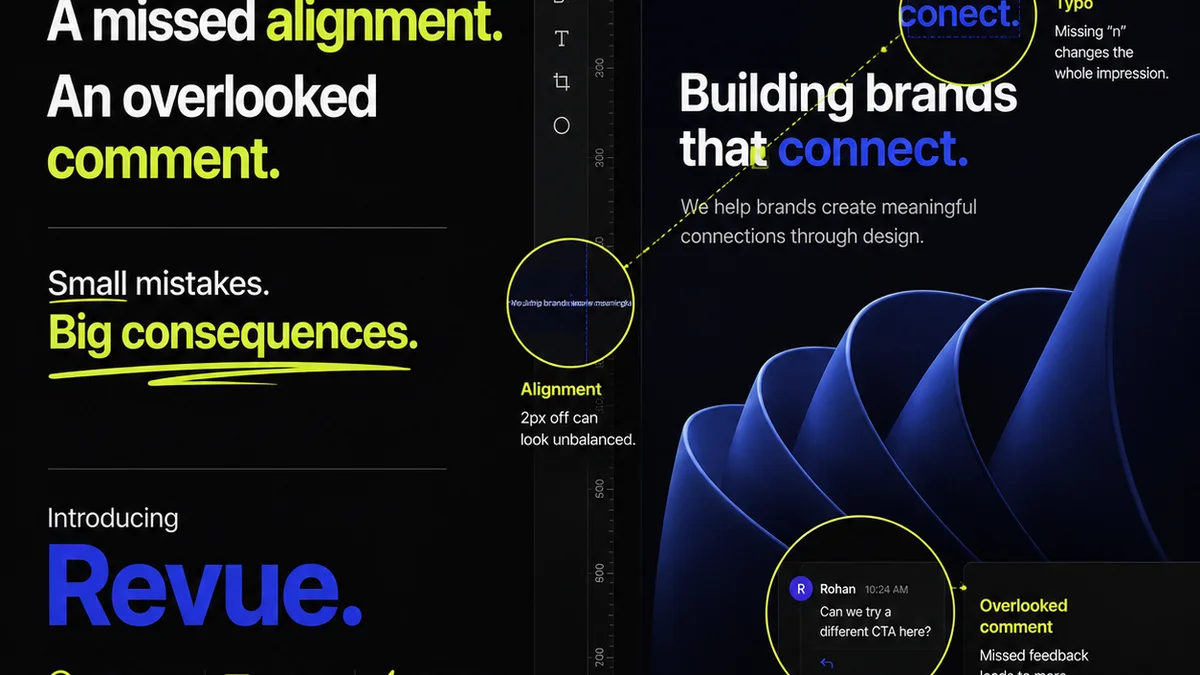
Managing feedback on complex files like PDFs can become chaotic. Scattered emails, version control nightmares, and missed comments are common.
Revue provides a centralized hub for all your creative feedback. Instead of hunting through inboxes, you can manage client comments, track revisions, and ensure approvals happen within a clear workflow.
When a PDF is uploaded to Revue, stakeholders can leave precise, contextual feedback directly on the document. This visual annotation tool eliminates ambiguity. Revisions are tracked, so you always know which version is current and who approved what. This structured approach drastically reduces the chances of a flawed PDF slipping through the cracks.
It transforms the QA process from a reactive scramble into a proactive, integrated part of your workflow. You gain visibility into the entire revision and approval cycle, ensuring that the final PDF meets all requirements before it ever leaves your system.
Final Thought
Your PDF is often the final deliverable. It’s the tangible representation of your team’s work. Treating it as more than just a file format isn’t just good practice; it’s essential for maintaining client trust and delivering professional results. Is your current PDF QA process truly rigorous enough?
Frequently asked questions
What is the most common mistake in PDF QA?
The most common mistake is treating a PDF as just a final file without checking its internal structure, embedded elements, or intended output specifications. This leads to issues with fonts, colors, resolution, and functionality that only appear late in the process.
How do I ensure a PDF is accessible?
Accessibility in PDFs involves proper tagging for screen readers, providing alt text for images, ensuring sufficient color contrast, and making form fields programmatically accessible. Tools like Adobe Acrobat Pro have features to check and remediate accessibility.
What's the difference between RGB and CMYK for PDFs?
RGB (Red, Green, Blue) is for digital screens, while CMYK (Cyan, Magenta, Yellow, Black) is for print. PDFs intended for print must be correctly converted to CMYK with an appropriate color profile embedded to ensure accurate color reproduction.
How can a tool like Revue help with PDF QA?
Revue centralizes feedback and approval processes. It allows precise, contextual annotations directly on PDF files, tracks all revisions and versions, and provides a clear audit trail for approvals, significantly reducing the risk of errors slipping through during the QA phase.